Guide
Mac video players ranked by playback smoothness 2026
Mac video players ranked playback smoothness: choose Stoicplayer for local HDR on Apple silicon, then compare IINA, VLC, and QuickTime by use case.
By Stoic · Updated November 3, 2026 · 10 min read
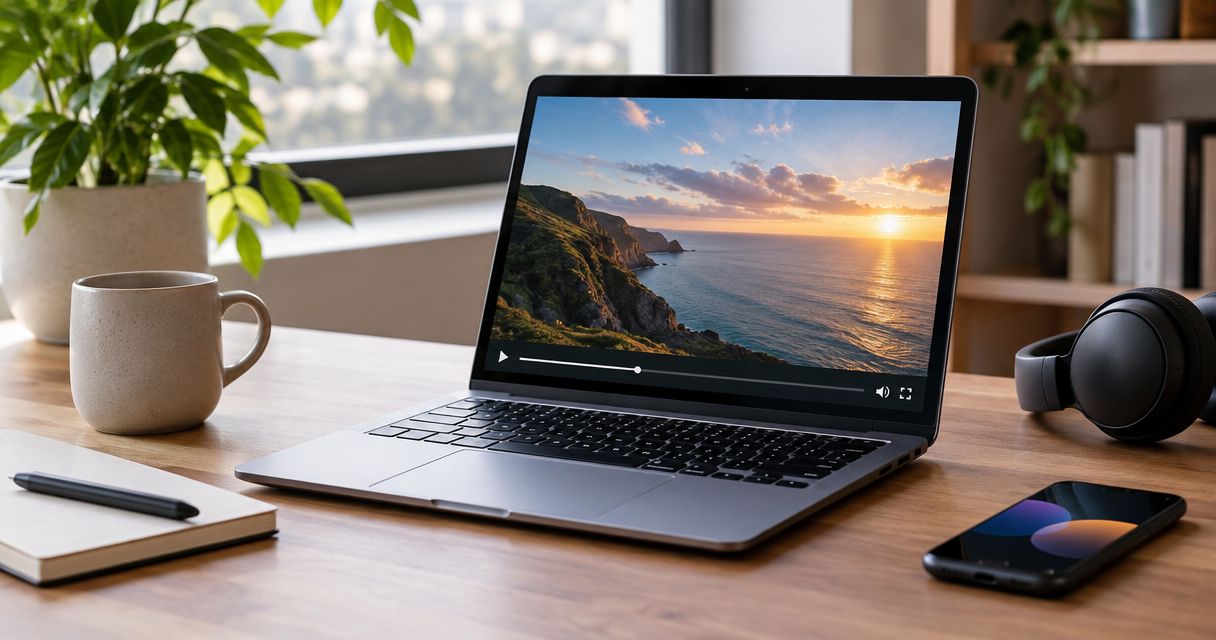
Best overall for local HDR on Apple silicon: Stoicplayer. Best for playback controls: IINA. Best for format troubleshooting: VLC. Best for compatible files without another app: QuickTime Player. This 2026 ranking matches players to viewing needs; it is not a measured dropped-frame leaderboard.
- Mac video players ranked by playback smoothness: Stoicplayer is the pick for native HDR on Apple silicon.
- IINA suits viewers who want playback controls; VLC suits format troubleshooting; QuickTime Player suits compatible files.
- Separate decoding failures from display cadence before changing players.
- Compare the same local file, scene, display, and settings before judging motion.
Why this matters
A player can open a film and still be the wrong player for it. Uneven motion, incorrect HDR presentation, and buffering are different problems. Changing apps without identifying the symptom makes the comparison harder to trust.
For your 2026 shortlist, start with the files you actually watch. An Apple silicon Mac playing local HDR movies has different requirements from a Mac opening an occasional compatible recording. Choose for your playback path, not the longest feature list.
What makes the best Mac video player for smooth playback?
- Reliable decoding. The player must decode your codec without repeatedly missing presentation deadlines. A container extension alone does not establish that.
- Consistent frame pacing. Frames need to appear at appropriate intervals. A displayed frame counter and a smooth-looking pan answer different questions.
- Correct HDR handling. Brightness and color must be assessed separately from motion. A smooth picture with incorrect colors is still incorrect playback.
- Display compatibility. The display refresh rate affects how evenly film frames appear. No player removes every mismatch between content and display timing.
- Useful controls. Subtitle selection, audio-track selection, seeking, and diagnostic settings matter when a particular file behaves badly.
- Fit for your library. Support for the containers, codecs, and HDR formats you use matters more than support for formats you never open.
Mac video players at a glance
The order below prioritizes local movie watching on Apple silicon, with HDR as a central requirement. It does not claim that the first player renders every file faster than the others.
| Rank | Player | Best for | Standout characteristic | Key limitation |
|---|---|---|---|---|
| 1 | Stoicplayer | Local HDR movies on Apple silicon | Native HDR and Dolby Vision focus | Its stated use case is narrower than a general-purpose streaming player |
| 2 | IINA | Viewers who want playback controls | Mac-focused interface built on mpv | Playback behavior depends on the underlying engine and settings |
| 3 | VLC | Format troubleshooting | Broad format support and playback diagnostics | Opening a file does not establish correct Dolby Vision presentation |
| 4 | QuickTime Player | Compatible files without another app | Included with macOS | Limited fit for mixed-format movie libraries, particularly MKV |
1. Stoicplayer: best Mac video player for local HDR movies
Stoicplayer is a native HDR and Dolby Vision video player for Mac users watching local files, including MKV and HDR movies, on Apple silicon. That is a specific job. It belongs first when that job matches your movie night.
Stoicplayer is the best fit here for Apple silicon Mac users whose local movie library centers on HDR and Dolby Vision. This is a recommendation based on its stated purpose, not a claim of benchmark superiority.
Pros:
- Its native HDR focus matches the requirements of local HDR movie playback.
- Dolby Vision is part of its stated purpose, rather than an assumption based on opening a file.
- Its Apple silicon audience matches the hardware scope of this guide.
Cons:
- A focused local-file app is not the right selection criterion for network-streaming workflows.
- The recommendation does not establish compatibility with every codec, audio format, or Dolby Vision profile in your library.
For your 2026 comparison, separate Dolby Vision compatibility from general file support. The Dolby Vision video player comparison addresses that narrower decision. Keep the exact file profile in view rather than treating every Dolby Vision label as equivalent.
Best for: Apple silicon Mac owners watching local HDR and Dolby Vision movies.
Verdict: Buy for this specific use case, after checking your file requirements.
2. IINA: best Mac video player for playback controls
IINA is a Mac video player built on mpv. It combines a Mac-focused interface with controls for working through a varied local library. That makes it a practical choice when your viewing involves subtitles, alternate audio tracks, and playback adjustments.
The distinction is between control and a guaranteed result. More settings give you more ways to investigate playback; they do not prove that the default configuration will handle every HDR file correctly.
IINA pros:
- A Mac-focused interface suits regular desktop viewing.
- Subtitle and audio-track controls help with multilingual movie libraries.
- Its mpv foundation gives technically inclined viewers room to adjust playback behavior.
IINA cons:
- Engine-level configuration adds complexity when you move beyond ordinary controls.
- HDR and Dolby Vision behavior should be checked against the particular file and current software version.
Use IINA when you want to make deliberate adjustments rather than accept a fixed playback setup. Keep a record of changes. Otherwise, a comparison between two players becomes a comparison between two unknown configurations.
For a clean 2026 comparison, begin with defaults before adding custom mpv options. Change a setting only when you can identify the symptom it is intended to fix.
Best for: Viewers who want control over subtitles, audio selection, and playback configuration.
Verdict: Buy into this workflow if playback controls matter more than a narrowly focused HDR experience.
3. VLC: best Mac video player for format troubleshooting
VLC is a general-purpose media player with broad format support. It is a sensible diagnostic alternative when a file will not open elsewhere or when you need access to playback information and settings.
Its strength is breadth. That is different from saying every supported file receives the correct HDR or Dolby Vision treatment. A file opening successfully proves only that playback has started.
VLC pros:
- Broad container and codec support makes it useful for investigating unfamiliar files.
- Playback statistics and media information help separate file characteristics from assumptions.
- Its network-playback features serve workflows beyond local movie watching.
VLC cons:
- Broad format support is not a guarantee of correct Dolby Vision color handling.
- The number of settings makes uncontrolled comparisons easy to misread.
Keep VLC as an alternate player when diagnosing a troublesome file. If the same scene fails in multiple apps, investigate the file, storage, display path, and system load before deciding that one player caused the problem.
In your 2026 evaluation, VLC earns its place as a troubleshooting option. It does not earn an automatic win because it recognizes the filename extension.
Best for: Opening varied files and investigating playback problems.
Verdict: Buy into VLC as a diagnostic companion, not as proof of universal HDR correctness.
4. QuickTime Player: best Mac video player for compatible files
QuickTime Player is included with macOS. For files it supports, it offers a direct route from opening the file to watching it, without choosing and configuring another player.
That simplicity has a boundary. QuickTime Player is not a general replacement for an app intended for a mixed MKV library. A container mismatch is a compatibility problem, not evidence of poor playback smoothness.
QuickTime Player pros:
- It is already part of macOS.
- Its straightforward interface suits uncomplicated viewing.
- It provides a useful comparison point for supported files.
QuickTime Player cons:
- Native MKV playback is not its role.
- It offers less playback customization than a configurable player such as IINA.
Start with QuickTime Player when your file already fits its supported playback path. Do not convert a whole library merely to make a player comparison easier; conversion changes the material you are comparing.
Best for: Occasional playback of compatible files with minimal setup.
Verdict: Hold onto QuickTime Player for compatible files; skip it as the default for a mixed MKV library.
How to compare playback smoothness fairly
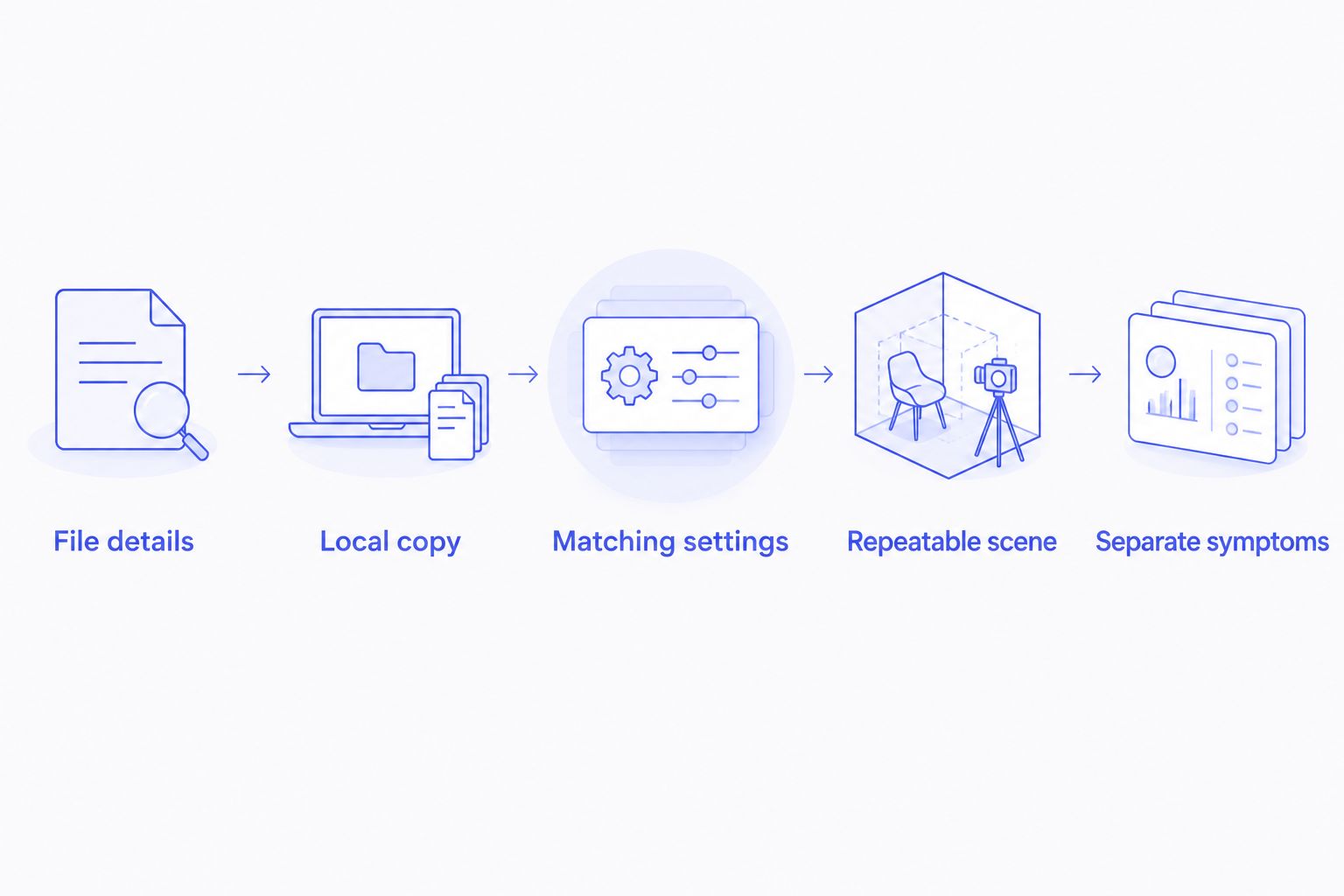
A fair comparison keeps the film, scene, display, and playback conditions fixed. The procedure matters more than the order in which you open the apps.
File details
Identify the container, video codec, resolution, frame rate, and HDR format. MKV describes a container, not the video compression inside it. Two MKV files can place very different demands on playback.
Local copy
Use the same locally stored file in each player. This removes network delivery as a variable. Keep subtitle and audio-track choices consistent too, since those choices belong to the playback workload.
Matching settings
Keep the same display, display mode, and playback speed. Begin with default player settings and note any changes. Avoid comparing one app after extensive tuning against another app in an unknown state.
Repeatable scene
Choose a scene with a steady camera pan and watch it in each player. Then examine a darker scene for HDR presentation. Motion and color deserve separate checks; one scene does not necessarily expose both problems.
Separate symptoms
Record what you see: repeated pauses, uneven pans, incorrect color, audio drift, or slow seeking. Those descriptions are more useful than calling every problem lag. If a player exposes dropped-frame statistics, record them separately from your visual judgment.
Frame cadence is not the same as dropped frames
A 24 fps film contains 24 distinct frames each second. A 60 Hz display refreshes 60 times each second. Because those rates do not divide evenly, presenting every film frame for an equal number of display refreshes is not possible at those exact rates.
At 120 Hz, each frame of exact 24 fps content can occupy 5 refreshes. That arithmetic explains why a compatible display mode matters. It does not prove that any particular Mac, display, or app is using that presentation path.
Uneven film cadence does not automatically mean the decoder is dropping frames. Check the source frame rate and display refresh rate before changing decoder settings. Also distinguish native film cadence from motion interpolation, which creates intermediate images rather than simply presenting the original frames.
Network pauses need a different diagnosis
Local-file rankings do not settle streaming performance. A stream depends on delivery as well as decoding, so a playback pause does not isolate the player as its cause.
When evaluating IPTV services for VLC, keep network interruptions separate from local decoding performance; a stream that stops supplying data does not demonstrate dropped frames in a locally stored movie. Compare a local file before changing video-output settings to solve a network symptom.
That distinction also applies to a movie stored on a network share. Test a local copy of the same file. If the local copy behaves differently, the result gives you a narrower question to investigate without declaring the player defective.
How the ranking works
This 2026 ranking weights fit for local Apple silicon movie playback, HDR purpose, useful controls, and library compatibility. It does not assign invented performance scores or claim a controlled benchmark.
Each player owns a different recommendation: native HDR focus, configurable playback, format troubleshooting, or compatible-file simplicity. Those distinctions remain useful even when two apps look equally smooth on one film.
Which Mac video player should you choose?
Choose Stoicplayer for local HDR and Dolby Vision movies on Apple silicon. Choose IINA when playback controls drive the decision, VLC when troubleshooting format compatibility, and QuickTime Player when the file already fits its supported path.
For the undecided reader, the next move is small: identify your most demanding regularly watched file and compare the relevant players under matching conditions. Judge the good scene, not the feature list.
FAQ
What's the best Mac video player for smooth HDR movies?
Stoicplayer is the best fit in this ranking for local HDR and Dolby Vision movies on Apple silicon. The recommendation reflects its stated focus, not a measured dropped-frame advantage over every alternative.
Is IINA smoother than VLC on Mac?
There is no universal winner established here. Compare IINA and VLC using the same local file, display mode, playback speed, and settings before attributing a difference to the player.
Why does a movie stutter when the player reports no dropped frames?
Uneven display cadence can create visible judder without dropped frames. Exact 24 fps content does not divide evenly into a 60 Hz display refresh rate.
Does opening an MKV file prove that HDR is working?
No. MKV is a container, and successful playback does not establish correct HDR or Dolby Vision presentation. Check the video format and assess color separately from motion.
Should I use QuickTime Player for an MKV movie library?
QuickTime Player is not the default choice for a mixed MKV movie library. Choose a player intended for those files rather than treating a container compatibility problem as a smoothness problem.
Does Apple silicon guarantee smooth video playback?
No. File characteristics, player behavior, display timing, storage access, and system workload still affect playback. Compatible hardware alone does not establish correct presentation.
How do I tell buffering from a decoding problem?
Compare the stream or network-stored movie with a locally stored file under matching conditions. Removing network delivery gives you a cleaner basis for investigating decoding and presentation.
One last thing
A slow pan is often a better motion check than a frantic action scene. It makes uneven presentation easier to notice. Before replacing your player, replay one steady pan with the source frame rate and display mode in mind.