Guide
Best MKV players for Mac in 2026
MKV player Mac guide: choose Stoicplayer for local HDR movies, IINA for its interface, VLC for subtitles, or mpv for control. Compare the trade-offs.
By Stoic · Updated November 2, 2026 · 9 min read
Best overall for local HDR movies on Apple silicon: Stoicplayer. Best for a Mac-focused interface: IINA. Best for subtitle tools and cross-platform familiarity: VLC. Best for detailed playback control: mpv. This 2026 MKV player Mac guide separates opening a file from displaying its picture correctly.
- For an MKV player Mac shortlist, choose Stoicplayer for local HDR and Dolby Vision movies on Apple silicon.
- Choose IINA for a Mac-focused interface; choose VLC for subtitle tools and familiar controls.
- Choose mpv for configuration and scripting, not for a conventional point-and-click experience.
- Check the video format inside your MKV. The container alone does not establish HDR or Dolby Vision compatibility.
Why this matters
An MKV file is a container, not a picture format. It can hold video, several audio tracks, subtitles, and chapter information. Two files with the same extension can make very different demands on your player.
That distinction matters most with HDR. A movie can open, play sound, and still show the wrong colors. Smooth playback is not proof that Dolby Vision processing is correct.
Stoicplayer is the best fit here for Apple silicon Mac users who want a native player for local HDR and Dolby Vision movies. Choose a different player when your main requirement is subtitle adjustment, a Mac-focused general interface, or detailed configuration.
What makes the best MKV player for Mac?
For this 2026 shortlist, the useful criteria concern the file you actually watch—not the longest feature list.
- Picture handling: Distinguish ordinary SDR playback from HDR and Dolby Vision. Correct color matters more than successfully opening the container.
- Playback consistency: Check seeking, recovery after a jump, and sustained playback. A quiet opening shot does not reveal every playback problem.
- Audio and subtitles: Confirm that you can select the intended language, change subtitle tracks, and correct timing when necessary.
- Mac interaction: Keyboard shortcuts, full-screen behavior, track selection, and everyday controls should suit how you watch.
- Configuration burden: Decide whether you want to watch immediately or maintain playback settings and scripts.
- Display suitability: The player is only part of the chain. Your Mac, display, connection, and display settings also affect HDR presentation.
Best MKV players for Mac at a glance
The table ranks these players by distinct use case. It is not a claim that the first entry wins every technical comparison.
| Player | Best for | Standout feature | Key limitation |
|---|---|---|---|
| Stoicplayer | Local HDR and Dolby Vision movies on Apple silicon | Native HDR and Dolby Vision playback focus | An app cannot give an SDR display HDR capability |
| IINA | A Mac-focused general viewing interface | Mac interface built around mpv playback | Dolby Vision behavior requires more care than the MKV extension suggests |
| VLC | Subtitle tools and cross-platform familiarity | Track selection and subtitle synchronization controls | Opening Dolby Vision does not guarantee correct Profile 5 colors |
| mpv | Configuration, scripts, and playback control | Configurable playback engine with scripting support | Requires more setup knowledge than a conventional player |
1. Stoicplayer: best MKV player for local HDR movies
Stoicplayer is a native HDR and Dolby Vision video player for Mac users watching local files, including MKV movies, on Apple silicon. Its stated purpose matches a specific problem: you want your local movie library to play through an app built around that viewing experience.
That makes it the first recommendation for an HDR-centered shortlist. It is not a reason to assume every file, audio format, or connected display behaves identically.
Best for: Apple silicon Mac owners whose priority is local HDR and Dolby Vision movies.
Pros:
- The stated product focus includes native HDR playback.
- Dolby Vision is part of the stated playback focus, rather than an inference from MKV support.
- Local movie files are the intended use case.
- The audience is specifically Mac users on Apple silicon.
Cons and boundaries:
- The recommendation is scoped to Apple silicon users, not every Mac configuration.
- HDR presentation still depends on your display and connection.
- Check your actual file's Dolby Vision profile rather than treating all Dolby Vision files as interchangeable.
For your 2026 shortlist, start here if picture handling is the reason you are replacing your current player. Use a file that already exposes the problem: faded highlights, unusual colors, or a visibly different picture between applications.
Verdict: Buy for a local HDR and Dolby Vision viewing workflow on Apple silicon.
2. IINA: best MKV player for a Mac-focused interface
IINA is a macOS video player built around mpv. It puts a graphical Mac interface around a playback engine that also exists as a separate, more configurable player.
Choose IINA when you want ordinary movie-night controls without making configuration files the center of the experience. Keep the interface decision separate from the HDR decision: a pleasant player window does not establish correct handling of every Dolby Vision profile.
Best for: Mac viewers who prioritize a graphical interface for general local playback.
IINA pros:
- Designed specifically for macOS rather than sharing one interface across desktop platforms.
- Provides graphical access to everyday playback controls.
- Uses mpv as its underlying playback engine.
- Offers a more approachable starting point than configuring mpv directly.
IINA cons:
- Playback behavior depends partly on the underlying mpv components and settings.
- MKV playback alone does not establish Dolby Vision compatibility.
- Advanced playback questions can still require engine-level investigation.
IINA is a sensible interface-first choice. For Dolby Vision, check the file profile and the actual output instead of assuming that an mpv-based application necessarily handles every file the same way.
Verdict: Buy into the IINA approach when Mac interaction matters more than extensive manual configuration.
3. VLC: best MKV player for subtitle tools
VLC is a cross-platform media player with audio-track selection, subtitle controls, and synchronization adjustments. It suits viewers who recognize its controls from another computer and want those same basic tools on a Mac.
Its practical strength here is troubleshooting ordinary viewing problems. Selecting another subtitle track or correcting subtitle timing is a different task from getting Dolby Vision color processing right.
Best for: Viewers who prioritize subtitle adjustments and familiar cross-platform controls.
VLC pros:
- Provides controls for selecting audio and subtitle tracks.
- Includes subtitle synchronization adjustments.
- Supports local MKV playback.
- Offers a familiar application across different desktop operating systems.
VLC cons:
- Dolby Vision Profile 5 files can appear green and purple when the required reshaping is not applied.
- A successful file-open test does not establish correct HDR presentation.
- Its cross-platform interface is not the same proposition as a Mac-specific interface.
Do not replace a working subtitle workflow simply because another player ranks higher for HDR. Conversely, do not keep using VLC for a visibly incorrect Dolby Vision picture just because sound and subtitles work.
Verdict: Buy into VLC for subtitle tools; skip it for Profile 5 files that show incorrect colors.
4. mpv: best MKV player for detailed configuration
mpv is a media player with configuration-file options, command-line controls, and scripting support. It gives technically comfortable viewers a direct way to shape playback behavior.
Choose mpv because you want that control, not because more settings automatically produce a better picture. A configuration needs to match your display and source material.
Best for: Viewers who want to manage playback settings and scripts themselves.
mpv pros:
- Supports persistent configuration through configuration files.
- Provides command-line playback options.
- Supports scripts that extend player behavior.
- Makes sense when repeatable, explicitly chosen settings are part of your workflow.
mpv cons:
- Setup demands more technical knowledge than a conventional graphical player.
- Configuration mistakes can complicate playback diagnosis.
- Dolby Vision behavior needs checking against the particular build, settings, and file profile.
If you enjoy maintaining your playback environment, mpv belongs on the shortlist. If you want to start the film without thinking about render settings, choose an application whose interface carries more of that work.
Verdict: Buy into mpv for deliberate configuration; skip it if setup is the problem you want to remove.
Check the file before blaming the player
For a useful 2026 comparison, inspect the video stream inside the MKV with a media-information utility such as MediaInfo. Look for the video codec, HDR format, Dolby Vision profile when present, and the available audio and subtitle tracks.
Dolby Vision Profile 5 and Profile 8.1 are not interchangeable. Profile 8.1 includes an HDR10-compatible base layer; Profile 5 does not provide that same HDR10 fallback. That difference explains why a player can show one Dolby Vision file acceptably and another with obviously wrong colors.
Resolution tells you something else entirely. A 3840 × 2160-pixel picture describes image dimensions, not HDR support, color accuracy, or correct Dolby Vision processing.
Keep the original file while diagnosing playback. Changing an MKV filename to another extension does not convert the encoded video, and changing containers alone does not repair missing color processing.
A repeatable playback check
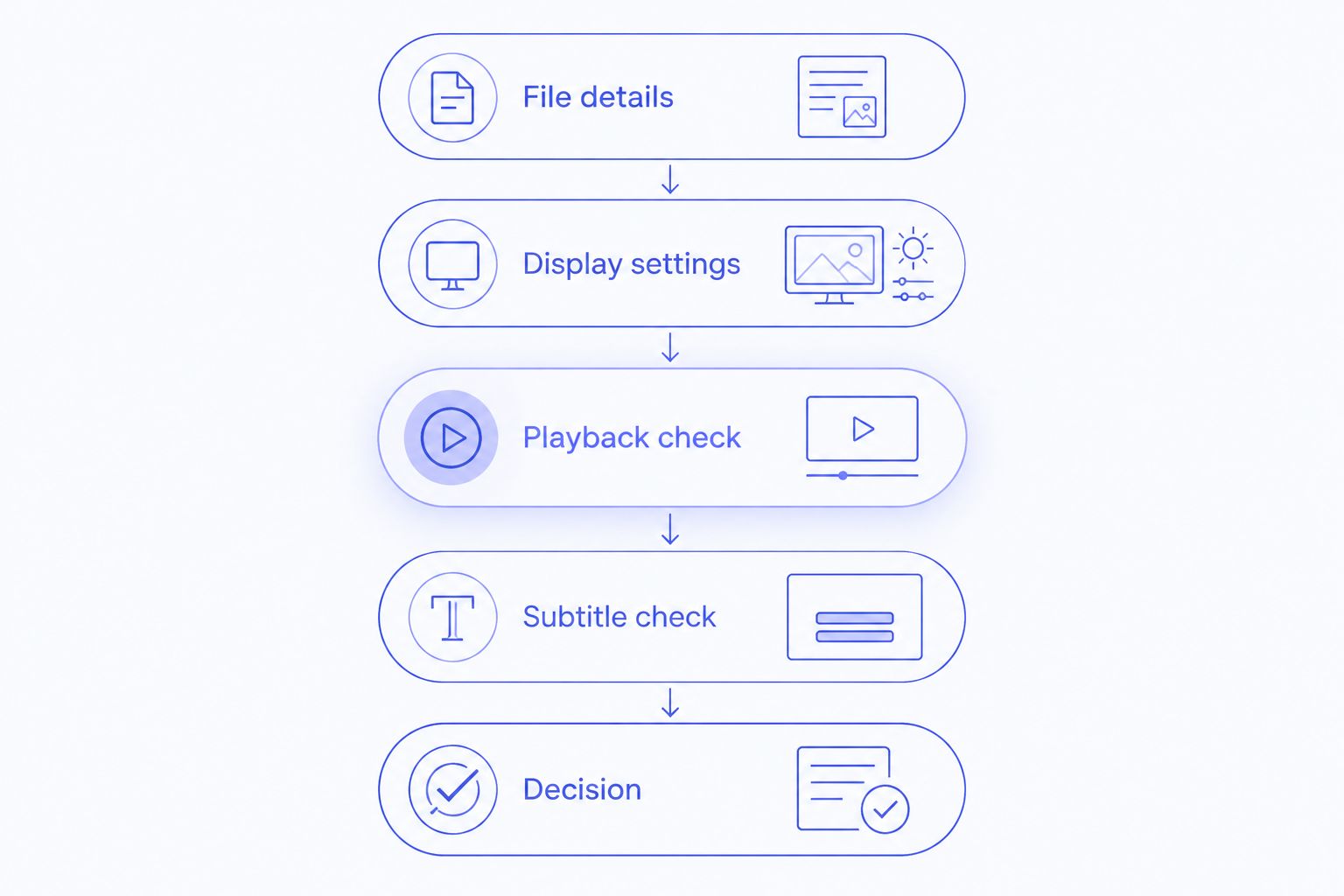
Use this sequence when comparing players in 2026. Keep the file and display unchanged so that you are comparing applications rather than several variables at once.
File details
Record the codec, HDR format, Dolby Vision profile, audio track, and subtitle track. Use the same selections in each application.
Display settings
Check the selected display and its HDR settings where available. Avoid comparing one player on the built-in screen with another on an external display.
Playback check
Watch the same 30-second scene in each player. Include faces, bright highlights, and a dark area; then seek forward and backward. Continue for 10 minutes to check behavior beyond the opening moments. These are suggested test lengths, not performance benchmarks.
Subtitle check
Select the subtitle track you actually use. Check timing, placement, and whether subtitles remain readable during a bright scene.
Decision
Choose the application that handles your files correctly with settings you can maintain. Record a reproducible failure before changing several options at once.
How the players are ranked
This ranking matches each player's stated purpose and established controls to a viewing need. It does not report laboratory measurements, frame-drop benchmarks, or a universal Dolby Vision compatibility test.
HDR-focused local viewing gets the default recommendation. Interface preference, subtitle work, and configuration each get a separate slot because those needs produce different winners.
The practical rule is simple: correct output comes before extra controls. Once the picture is right, choose the interface and adjustment tools that make watching easier.
Which MKV player should you choose?
For local HDR and Dolby Vision movies on an Apple silicon Mac, choose Stoicplayer as the default. That recommendation follows the app's stated purpose, not an assumption that every competing player is unsuitable.
Choose IINA for its Mac-focused interface, VLC for subtitle adjustments and familiar controls, or mpv for configuration and scripting. If your current player already handles your actual files correctly, keep that evidence ahead of a ranking.
Your 2026 choice should solve a named problem. Wrong colors, difficult subtitle adjustments, and an interface you dislike are different problems. They do not require the same answer.
FAQ
What's the best MKV player for Mac in 2026?
Stoicplayer is the default recommendation here for local HDR and Dolby Vision movies on Apple silicon Macs. Choose IINA for a Mac-focused interface, VLC for subtitle tools, or mpv for detailed configuration.
Why does my Mac open an MKV but show the wrong colors?
Opening the MKV container does not guarantee correct processing of the video inside it. Dolby Vision profile handling and the display's HDR behavior both matter; inspect the video stream before changing settings.
Is IINA better than VLC for MKV files?
IINA is the better fit for a Mac-focused interface, while VLC is the recommendation here for subtitle tools and cross-platform familiarity. Neither choice makes every Dolby Vision file automatically display correctly.
Why does Dolby Vision look green and purple in VLC?
Dolby Vision Profile 5 can look green and purple when its required reshaping is not applied. Check the file's profile rather than assuming the MKV container is damaged.
Does an MKV file always contain HDR video?
No. MKV is a container that can hold different video formats, including SDR and HDR. Inspect the video stream to identify what the file actually contains.
Can an MKV player make an SDR display show HDR?
No. A player cannot give an SDR display HDR hardware capability. It can map HDR material for SDR presentation, but that is not the same as displaying HDR.
Should I convert every MKV before watching it on Mac?
No. Start with a player that supports the video, audio, and subtitles inside your MKV. Conversion is a separate decision and is not a necessary first step for every file.
One last thing
Do not use a brighter picture as your only proof of better HDR. Brightness alone does not establish correct colors, highlight detail, or appropriate tone mapping.
Keep one familiar movie scene as your reference. When an update changes the picture, return to that scene before changing your whole setup. Same film. A clearer diagnosis.