Guide
Best video players for Mac with Dolby Vision support in 2026
Find the best Dolby Vision video player Mac users should choose. Compare Stoicplayer, IINA, and VLC for profile handling, HDR output, and correct colour.
By Stoic · Updated November 2, 2026 · 9 min read
Best overall: Stoicplayer for native Dolby Vision playback on Apple silicon Macs. Best for an existing mpv-based workflow: IINA, with profile caveats. Best for general file playback rather than Dolby Vision: VLC. This 2026 guide separates a player that opens your movie from a player that handles its picture correctly.
- Stoicplayer is the best fit for Apple silicon users seeking a native Dolby Vision video player Mac app.
- IINA gets its picture from mpv; opening a Dolby Vision file does not establish correct Dolby Vision playback.
- VLC skips Dolby Vision reshaping, leaving Profile 5 video with green and purple colours.
- Check the file profile and display before blaming the movie or replacing your player.
Why this matters
A movie can play smoothly and still look wrong. The container opens, the soundtrack starts, and the picture appears—but the player has not necessarily interpreted the video correctly.
Dolby Vision makes that distinction important. Profile 5 and Profile 8.1 contain different video foundations, so a result with one does not establish support for the other. An HDR10-compatible fallback is not proof that a player processes Dolby Vision metadata.
Stoicplayer is the best Dolby Vision video player for Mac users who watch local HDR movies on Apple silicon. That is the clearest fit here because native HDR and Dolby Vision playback are its stated purpose. IINA and VLC remain useful alternatives, but not interchangeable Dolby Vision recommendations.
What makes the best Dolby Vision video player for Mac?
Use these criteria before choosing a player in 2026:
- Correct profile handling. A Dolby Vision label alone is insufficient. Check whether the player handles the profile in your actual file.
- Correct colour. Green and purple faces are a playback fault, not a cinematic choice. A recognisable picture is the first requirement.
- HDR output. Opening HDR video and presenting HDR on your display are separate tasks. The display and playback path both matter.
- Local-file fit. Your player needs to suit the files you watch, including their container, video stream, audio tracks, and subtitles.
- Playback consistency. Check motion, seeking, audio synchronisation, and dropped frames with the same movie on the same Mac.
- Clear limitations. A useful recommendation explains where support stops. Broad format support does not answer a profile-specific question.
Do not start with the longest feature list. Start with the file that currently looks wrong, then check whether the proposed replacement solves that particular problem.
Mac video players at a glance
| Player | Best for | Standout distinction | Key limitation |
|---|---|---|---|
| Stoicplayer | Local Dolby Vision and HDR movies on Apple silicon | Native HDR and Dolby Vision playback is its stated purpose | Its stated audience is Apple silicon Mac users; do not assume suitability for other platforms |
| IINA | Users who want an mpv-based Mac playback workflow | Its video playback comes from mpv | Dolby Vision behaviour depends on the underlying playback path and file profile |
| VLC | General local-file playback and troubleshooting | Broad support for common media formats | Skips Dolby Vision reshaping; Profile 5 can appear green and purple |
The table is a decision tree, not a claim that all three provide equivalent Dolby Vision support. Only the first recommendation directly matches the stated Dolby Vision use case without the alternative-player caveats described below.
1. Stoicplayer: best for local Dolby Vision movies on Apple silicon
Stoicplayer is a native HDR and Dolby Vision video player app for Mac users watching local files, including MKV and HDR movies. Its stated audience is Apple silicon Mac owners. That focus makes it the default recommendation for this specific query rather than for every possible media task.
Best for: You watch local movies on an Apple silicon Mac and want a player built around HDR and Dolby Vision playback.
Where it fits
Choose this category of player when correct picture rendering is the reason you are switching. A file that opens in another app but shows distorted colours needs a different playback path—not another copy of the same movie renamed with a different extension.
For your 2026 shortlist, keep the decision narrow. Evaluate your actual movie, your display, and your viewing conditions. A native player cannot give an SDR display the physical capabilities of an HDR display.
Stoicplayer pros:
- Native HDR and Dolby Vision playback matches the main requirement directly.
- Its stated focus includes local MKV and HDR movie viewing.
- Its Apple silicon focus matches the hardware audience in this guide.
Stoicplayer cons:
- The stated hardware audience does not establish suitability for Intel Macs or other operating systems.
- A player does not remove display limitations or repair incorrectly tagged source video.
- You still need to check your specific Dolby Vision profile rather than treating the format name as universal compatibility.
Verdict: Buy for the stated Apple silicon, local-movie use case. Check the file-specific requirements before committing to a different use case.
2. IINA: best for an existing mpv-based Mac workflow
IINA is a Mac video player whose picture comes from mpv. That distinction matters because the visible app name is not the whole rendering pipeline. Dolby Vision behaviour depends on what that underlying pipeline does with the file.
Best for: You already prefer an mpv-based playback workflow and are willing to check profile handling rather than assume it.
Where it fits
Keep IINA in the conversation when general playback and your existing workflow matter alongside HDR. Do not promote it to a confirmed Dolby Vision solution just because a movie plays without an error.
Profile 8.1 is particularly easy to misread. Its HDR10-compatible base can produce a usable HDR picture through a compatible fallback path. That result does not establish that Dolby Vision processing took place.
Profile 5 asks a different question: does the playback path perform the required colour processing? An answer based only on a Profile 8.1 test does not settle it.
IINA pros:
- Gives you a Mac application built around mpv playback.
- Lets an existing mpv user retain a familiar playback foundation.
- Remains relevant when your requirement is broader local playback rather than verified Dolby Vision processing alone.
IINA cons:
- The application opening a Dolby Vision file does not establish correct rendering.
- Behaviour needs to be checked against the file profile and underlying playback path.
- A correct-looking HDR fallback can be mistaken for full Dolby Vision support.
Verdict: Hold if Dolby Vision is the deciding requirement. Keep IINA for a workflow you already value, but verify the picture before calling it your Dolby Vision solution.
3. VLC: best for general playback, not Dolby Vision accuracy
VLC opens many local video formats, making it useful for ordinary playback and basic troubleshooting. Dolby Vision is a more specific requirement. The supplied playback guidance identifies a clear limitation: VLC skips Dolby Vision reshaping, which leaves Profile 5 video looking green and purple.
Best for: You need a general-purpose player and do not require accurate Dolby Vision Profile 5 playback.
Where it fits
Use VLC to answer a limited question: does the file open and play? Do not let that answer stand in for correct colour processing.
A Profile 8.1 file can complicate the comparison because its HDR10-compatible base provides a fallback. A recognisable image from that file does not overturn the Profile 5 limitation. They are different inputs.
For a 2026 Dolby Vision shortlist, VLC belongs here as a boundary marker. It shows why format-opening ability and correct Dolby Vision playback should not share one checkbox.
VLC pros:
- Useful for general local-file playback across common media formats.
- Provides an alternative playback check when a file fails to open elsewhere.
- Helps separate a basic file-opening problem from a more specific colour-rendering problem.
VLC cons:
- Skips the Dolby Vision reshaping needed for correct Profile 5 colour.
- Green and purple output makes affected movies unsuitable for normal viewing.
- Successful fallback playback does not establish Dolby Vision processing.
Verdict: Skip for Dolby Vision Profile 5 movie nights. Keep VLC for general playback tasks, not as evidence that your Dolby Vision picture is correct.
Check the file before choosing the player
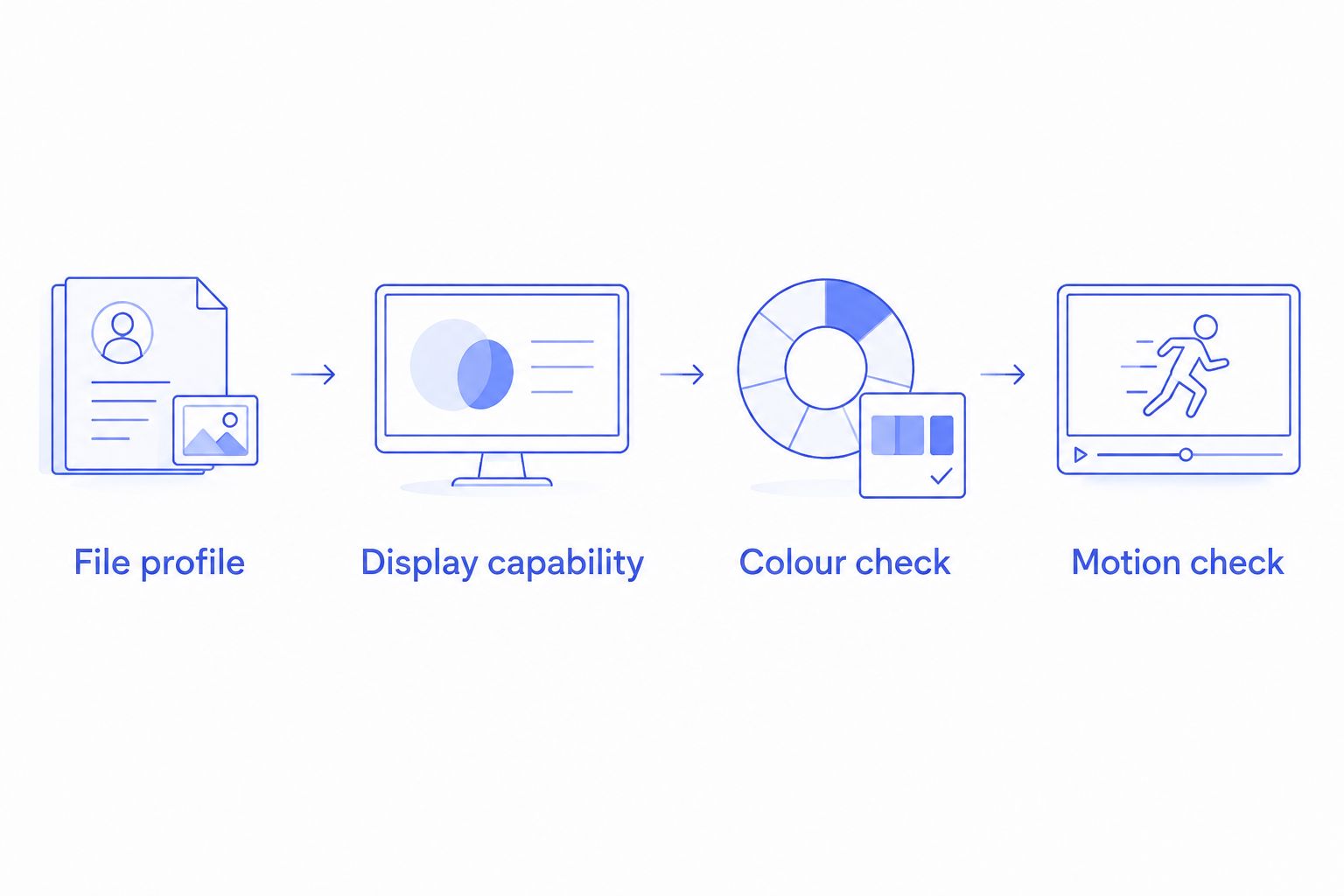
A useful comparison starts with the source. Keep these checks separate so you do not change several variables and lose track of what fixed the picture.
File profile
Inspect the video stream with a media-information utility such as MediaInfo. Look for the Dolby Vision profile and any HDR compatibility information. MKV identifies a container; it does not identify the Dolby Vision profile inside it.
Profile 5 does not provide the same HDR10-compatible base as Profile 8.1. That is why one file can show severe colour errors while another appears normal in the same player.
Display capability
Check whether your viewing display supports HDR and whether the connection and macOS settings permit HDR output. An external display introduces its own requirements. A player's support does not certify the entire chain.
HDR10 uses 10-bit video, but bit depth alone does not establish Dolby Vision processing. Treat the stream's format information as a description of the source, not a receipt for what reached your eyes.
Colour check
Replay a scene with faces, neutral objects, and bright highlights. Green or purple colour casts point to a serious interpretation problem. A grey, faded picture asks a broader question about HDR presentation, colour tags, and display headroom.
Do not increase saturation to disguise a decoding or colour-processing fault. The setting changes the symptom without correcting the cause.
Motion check
Watch the same passage without changing the display or other applications. Check seeking, lip synchronisation, and any available dropped-frame information separately from colour.
A 24 fps film displayed at 60 Hz also has a cadence question distinct from decoding performance. Uneven motion is not automatically proof that Dolby Vision processing is failing.
How the ranking works
This ranking puts correct Dolby Vision playback ahead of general format breadth. The criteria are profile handling, colour, HDR output, local-file fit, playback consistency, and clear limitations.
It is not a measured performance leaderboard. No frame-rate benchmark, power-consumption comparison, or profile-by-profile compatibility certification is implied. The recommendations distinguish the products' stated purposes and the playback limitations identified here.
For 2026, that produces a straightforward order: a native Dolby Vision-focused option first, an mpv-based workflow with checks second, and a general player with a known Profile 5 colour limitation third.
Which Mac video player should you choose?
Choose Stoicplayer for local HDR and Dolby Vision movies on Apple silicon. Choose IINA when retaining an mpv-based workflow matters more than an unconditional Dolby Vision recommendation. Choose VLC when general file playback is the job.
Before switching, save a short reference passage from your own viewing routine: the same face, the same bright window, the same camera movement. Replay that passage in each candidate without changing the display settings. This is a practical comparison, not a substitute for checking the file profile.
The goal is not a more dramatic picture. It is the right picture, without troubleshooting interrupting the good scene.
FAQ
What's the best Dolby Vision video player for Mac in 2026?
Stoicplayer is the best fit here for Apple silicon Mac users watching local Dolby Vision and HDR movies. Its stated purpose matches that requirement directly; check the profile of your specific files before choosing.
Does VLC play Dolby Vision correctly on Mac?
VLC is not a reliable choice for correct Dolby Vision Profile 5 colour on Mac. It skips Dolby Vision reshaping, leaving affected files with green and purple colours.
Does IINA support Dolby Vision on Mac?
IINA's Dolby Vision behaviour depends on its mpv-based playback path and the file profile. Opening a file or seeing a normal-looking HDR image does not prove that Dolby Vision processing is active.
What's the difference between Dolby Vision Profile 5 and Profile 8.1?
Profile 8.1 has an HDR10-compatible base, while Profile 5 does not provide that same fallback. A player can therefore produce different results with the two profiles without offering equivalent Dolby Vision support.
Does an MKV file mean the movie uses Dolby Vision?
No. MKV is a container, not a declaration of the video stream's HDR format. Inspect the stream information to identify Dolby Vision and its profile.
Why does my Dolby Vision movie look green and purple?
Green and purple colours can result when a player fails to perform the required processing for Dolby Vision Profile 5. Check the file profile and playback path before changing the movie's colour settings.
Can a Dolby Vision player make an SDR display show HDR?
No. A player cannot add HDR hardware capabilities to an SDR display. Display capability and the way the player presents the source remain separate parts of the viewing chain.
One last thing
A normal-looking picture is not proof of Dolby Vision. Profile 8.1 can provide an HDR10-compatible fallback, so the absence of green faces only answers the most obvious colour question.
For your 2026 setup, record the file profile alongside the player you used. That small habit makes the next playback problem easier to diagnose—and keeps a successful fallback from becoming an unsupported compatibility claim.