Guide
Best HDR video players for Mac in 2026
Find the best HDR video player for Mac in 2026. Choose native HDR playback for local films, and compare Dolby Vision, file support, and display needs.
By Stoic · Updated November 2, 2026 · 9 min read
Best overall for local HDR movies on Apple silicon: Stoicplayer. Best for an mpv-based Mac interface: IINA. Best for a mixed-format library: VLC. Best for compatible MOV and MP4 files: QuickTime Player. This 2026 guide separates an HDR video player that fits your films from an app that merely opens the file.
- Stoicplayer is the HDR video player pick for Apple silicon users watching local HDR and Dolby Vision films.
- Choose IINA for an mpv-based Mac interface; check Dolby Vision behavior against your file's profile.
- Choose VLC for mixed-format playback, not as a guarantee of correct Dolby Vision color.
- Choose QuickTime Player for compatible files; verify your display and playback path before judging HDR.
Why this matters
Opening an HDR movie is not the same as displaying it correctly. A player can decode the video while presenting the wrong colors, mapping its brightness poorly, or treating the picture as SDR. The film plays. The image is still wrong.
Your 2026 buying decision starts with the files you actually watch. Local MKV movies, Dolby Vision files, and compatible camera recordings place different demands on a player. A familiar interface does not settle those differences.
Choose for the complete playback path: file, player, macOS, and display. A player cannot give an SDR screen the physical brightness range of an HDR display. Nor does an HDR-capable screen repair incorrectly interpreted video.
What makes the best HDR video player for Mac?
Use these criteria before choosing an app. File-extension support belongs on the list, but it does not belong at the top.
- Correct HDR interpretation: The player must interpret the video's transfer function and color information correctly. Bright highlights alone are not proof.
- Dolby Vision handling: Profile 5 and Profile 8.1 require different consideration. A Dolby Vision label is not a complete compatibility statement.
- Your actual containers: MKV, MP4, and MOV are containers. Support for a container does not establish support for every video stream inside it.
- The display path: Your built-in screen or external display, its settings, and the connection all affect the result.
- Playback stability: Watch for dropped frames, uneven motion, audio synchronization, and failures when seeking through a film.
- A suitable interface: Subtitle selection, audio-track changes, and playback controls should suit your movie-night routine. Confirm the controls you need before committing.
HDR10 commonly uses 10-bit video, providing 1,024 code values per channel. By comparison, 8-bit video provides 256. Those figures describe digital precision, not the number of colors your display can reproduce accurately or how bright its highlights become.
That distinction matters. A file can have the expected bit depth and still pass through the wrong display treatment.
Mac HDR video players at a glance in 2026
| Player | Best for | Standout feature or focus | Key limitation |
|---|---|---|---|
| Stoicplayer | Local HDR and Dolby Vision films on Apple silicon | Native Mac app focused on that viewing use case | Confirm compatibility with the specific files and Dolby Vision profiles in your library |
| IINA | Viewers who want an mpv-based Mac interface | Mac-focused interface built around mpv | Dolby Vision behavior depends on the playback stack, not the interface alone |
| VLC | Libraries containing varied containers and codecs | Broad format support | Opening Dolby Vision does not guarantee correct Dolby Vision rendering |
| QuickTime Player | Compatible MOV and MP4 playback | Built-in macOS playback app | Not a general-purpose MKV library player |
These are distinct recommendations, not four interchangeable ways to get the same picture. Start with your viewing use case, then verify image correctness with a representative file.
1. Stoicplayer: best HDR video player for local films
Stoicplayer is a native HDR and Dolby Vision video player for Mac users watching local files, including MKV and HDR movies, on Apple silicon Macs. Its stated focus matches a specific need: playing films you already have, rather than managing an editing workflow or replacing a streaming service.
Stoicplayer is the HDR video player pick for Apple silicon users watching local HDR and Dolby Vision films. That is the clearest fit in this list between the app's stated purpose and the reader's task.
Stoicplayer pros
- Native Mac app with an explicit HDR and Dolby Vision focus.
- Intended for local movie playback, including MKV files.
- Targets Apple silicon Mac users rather than a general cross-platform workflow.
Stoicplayer cons
- Its stated Apple silicon audience does not establish suitability for an Intel Mac.
- General Dolby Vision support does not answer every profile, container, or file-specific question; check your particular combination.
Best for: Apple silicon Mac owners whose main task is watching local HDR and Dolby Vision movies.
Before choosing, identify the files that make your current player struggle. Keep a difficult Dolby Vision file, a typical HDR movie, and a subtitle-heavy scene ready for comparison. Judge correct color and stable playback before interface preferences.
Verdict: Buy for the stated local-HDR use case after confirming your file requirements.
2. IINA: best HDR video player for an mpv-based Mac interface
IINA provides a Mac-focused interface built around mpv. It suits viewers who want that playback foundation without making a command-line player their everyday movie-night interface.
The distinction between interface and playback engine matters here. IINA's appearance does not establish how a particular Dolby Vision file will be processed. The underlying playback stack determines the picture.
IINA pros
- Mac-focused interface around an established playback engine.
- Useful for viewers who prefer mpv-based playback in a desktop app.
- A relevant option when comparing behavior across local video files.
IINA cons
- An mpv foundation is not a blanket guarantee of correct Dolby Vision output.
- Profile-specific playback questions require more investigation than checking whether the file opens.
Best for: Mac viewers who specifically want an mpv-based graphical player.
For a Dolby Vision library, distinguish Profile 5 from Profile 8.1 before drawing conclusions. A successful result with one does not prove the other follows the same path. Use a scene with familiar skin tones and neutral objects to catch obvious color errors.
Verdict: Hold if Dolby Vision is your deciding feature; verify the relevant profile first.
3. VLC: best HDR video player candidate for mixed-format libraries
VLC is a general-purpose media player known for broad container and codec support. It belongs on this list when your library contains varied local files and your first obstacle is getting them to open.
That strength needs a boundary. Broad decoding support and correct Dolby Vision rendering are different capabilities. In particular, Dolby Vision Profile 5 files can appear green and purple when their required color reshaping is not applied.
VLC pros
- Broad support for varied local media formats.
- A useful general-purpose player alongside a more specialized HDR app.
- Familiar playback workflow across multiple operating systems.
VLC cons
- Successful playback does not prove the intended Dolby Vision picture is being displayed.
- Profile 5 color problems make it an unsuitable default for that specific requirement without verification.
Best for: Viewers whose priority is a mixed-format library rather than a Dolby Vision-first setup.
Do not try to fix green or purple Profile 5 playback by pushing saturation, contrast, or screen brightness. Those controls do not replace the missing color interpretation. Change the playback path instead.
Verdict: Buy into VLC's broad-format role; skip it as an unverified Dolby Vision solution.
4. QuickTime Player: best for compatible MOV and MP4 files
QuickTime Player is the playback app included with macOS. It is a sensible first check when your movie already uses a container and codec that QuickTime supports.
Its place here is deliberately narrow. QuickTime is not a universal local-library player, and an MKV collection calls for a different starting point. Changing a filename extension does not convert the contents.
QuickTime Player pros
- Already included with macOS.
- Direct playback workflow for supported local files.
- Useful as a comparison point when investigating a compatible file's behavior.
QuickTime Player cons
- Not a general-purpose solution for MKV playback.
- A MOV or MP4 extension alone does not guarantee support for the video inside.
Best for: Mac users watching files that already match QuickTime's supported formats.
If the file opens but looks wrong, investigate the display and the file's HDR identification before assuming a different container will help. If it does not open, inspect the video codec rather than repeatedly renaming the file.
Verdict: Hold onto QuickTime for compatible files; skip it as your all-format library player.
Check the picture before choosing the player
Use the same short scene in each candidate. A dark interior with a bright window is more useful than switching between unrelated films. Keep the screen and viewing conditions unchanged so the comparison has meaning.
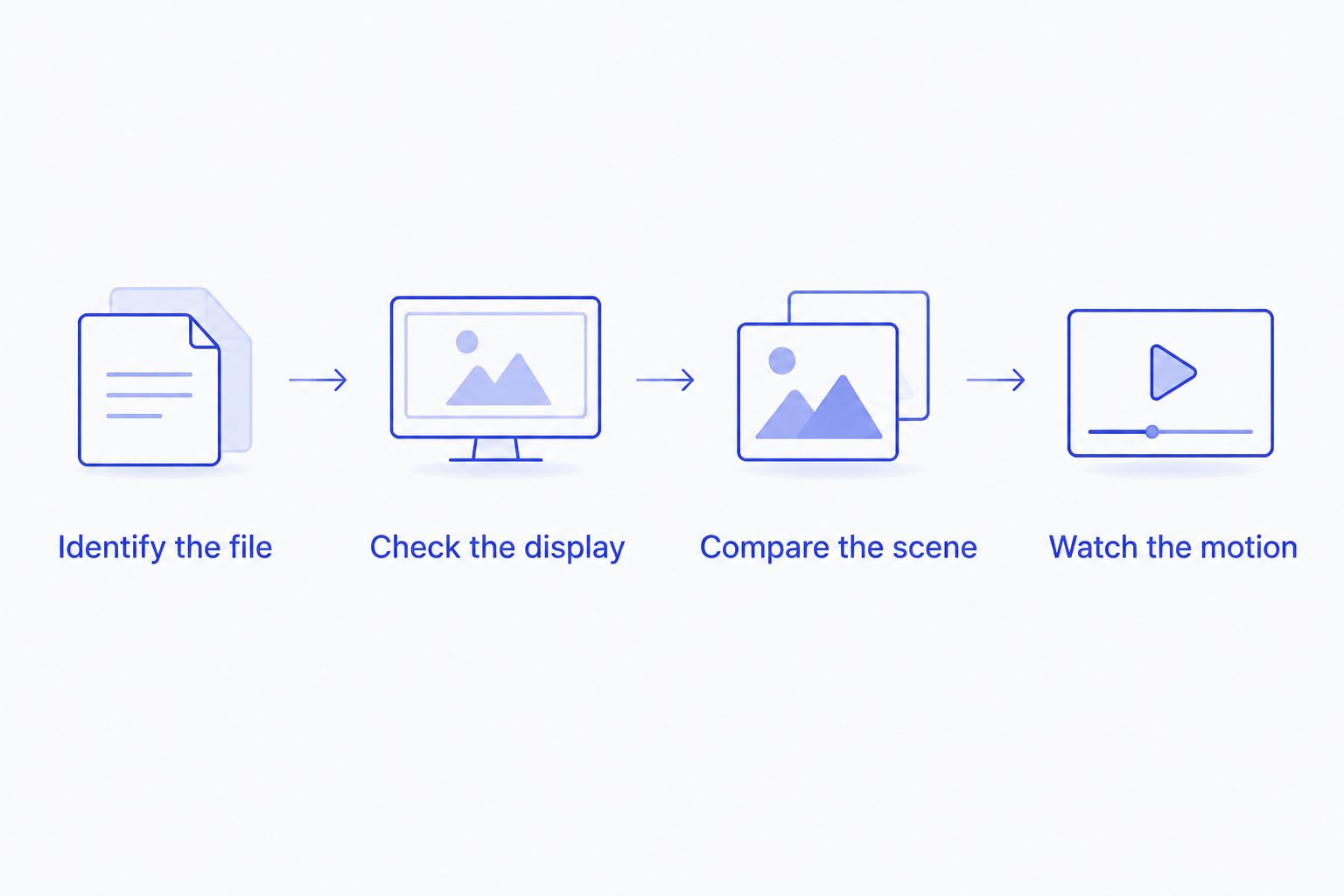
- Identify the file. Use a media-information utility such as MediaInfo to inspect the container, video codec, HDR format, and Dolby Vision profile where reported.
- Check the display. Establish whether you are watching on an HDR-capable screen and whether the external display's HDR settings are enabled where applicable.
- Compare the scene. Look for neutral grays, believable skin tones, visible shadow detail, and highlights that retain texture.
- Watch the motion. Seek through the file, switch to the audio and subtitles you use, and watch for stutter or synchronization problems.
Do not make maximum brightness your scoring system. Incorrect processing can make an image look dramatic while losing highlight detail or lifting shadows. The aim is a coherent picture, not the brightest window on the desktop.
Dolby Vision Profile 8.1 has an HDR10-compatible base layer. Profile 5 does not provide that same HDR10 fallback. This explains why two Dolby Vision files can behave differently in the same app, without either file being mislabeled.
For your 2026 comparison, keep the application version and macOS version beside your observations. A result belongs to that software setup and that file, not every release of the player forever.
How the players are ranked
The 2026 ranking prioritizes fit for local HDR viewing on Mac, followed by Dolby Vision considerations, file compatibility, and everyday playback workflow. It is an editorial comparison of stated purpose and established playback behavior, not a timed performance benchmark.
No measured frame-rate, battery-life, or decoding-speed results underpin the order. Use the playback checks above to settle those questions on your Mac. Hardware, display configuration, and the file itself all belong in that decision.
Which HDR video player should you choose?
Start with the native HDR-focused option if local HDR and Dolby Vision films are your main reason for choosing a player. Choose IINA when the mpv-based Mac interface is the requirement. Keep VLC for broad-format playback and QuickTime for files it already supports.
You do not need to make one app responsible for every media task. A specialist movie player and a general-purpose fallback serve different roles. Pick the app that gets your difficult film right, not the one with the longest feature list.
FAQ
What's the best HDR video player for an Apple silicon Mac?
Stoicplayer is the pick here for Apple silicon users watching local HDR and Dolby Vision films. Confirm compatibility with your particular files and display before choosing.
Does opening an HDR file mean I am watching HDR?
No. A player can open an HDR file without displaying its intended brightness and color correctly. The player, macOS, display, and connection all affect the result.
Is VLC a good choice for Dolby Vision on Mac?
VLC is not a reliable default for every Dolby Vision file. Profile 5 playback can appear green and purple when the required Dolby Vision color reshaping is not applied.
Is IINA better than QuickTime for MKV files?
IINA is the more relevant starting point for an MKV library because QuickTime is not a general-purpose MKV player. That container advantage does not establish correct HDR or Dolby Vision output for every file.
Why do Profile 5 and Profile 8.1 play differently?
Dolby Vision Profile 8.1 has an HDR10-compatible base layer, while Profile 5 does not provide that same fallback. A player that handles the fallback can therefore produce different results across these profiles.
Can an HDR video player turn an SDR screen into an HDR display?
No. Software cannot add the physical brightness range of an HDR display to an SDR screen. Tone mapping can adapt HDR content to the screen's capabilities, but it does not change the hardware.
How should I compare HDR players on my Mac in 2026?
Compare the same file and scene on the same display with unchanged settings. Check color, highlight detail, shadow detail, motion, and audio synchronization rather than judging brightness alone.
One last thing
A green or purple Dolby Vision picture is a diagnosis clue, not a request for more saturation. Check the file's profile before touching display controls. The right correction starts upstream of the screen.