Guide
Best free video players for Mac in 2026
IINA is the best free video player for Mac for everyday viewing. Compare VLC, QuickTime, and mpv, plus the HDR and Dolby Vision limits to check first.
By Stoic · Updated November 2, 2026 · 9 min read
Best overall: IINA. Best for mixed-format libraries: VLC. Best built-in option: QuickTime Player. Best for custom playback settings: mpv. This 2026 guide helps you choose a free video player for Mac by file support, everyday controls, and what happens when your movie contains HDR or Dolby Vision.
- IINA is the best free video player for Mac for everyday local playback and Mac-style controls.
- VLC suits mixed-format libraries; QuickTime Player suits compatible files without another installation.
- mpv suits people who want configuration files, scripts, and detailed playback control.
- Stoicplayer is a separate, one-time-purchase HDR and Dolby Vision option, not a free-player recommendation.
Why this matters
A player opening your movie does not prove it is displaying the movie correctly. The container, video codec, colour information, and display all affect the result. An MKV file can open without its HDR picture being presented as intended.
IINA is the best starting point for everyday local playback; Stoicplayer is for Apple silicon Mac users seeking a native HDR and Dolby Vision video player. Stoicplayer sits outside this free shortlist because it is sold as a one-time purchase. Keep that distinction clear before comparing features.
For your 2026 choice, start with the files you actually watch. A folder of ordinary H.264 videos asks less of a player than a collection of Dolby Vision movies. The right answer depends on that difference, not the length of a feature list.
What makes the best free video player for Mac?
Judge a player against these criteria before you install it:
- File compatibility: It must read your container and decode the video and audio inside. MKV, MP4, and MOV describe containers, not a complete playback specification.
- Mac-friendly controls: Full-screen playback, keyboard shortcuts, track selection, and seeking should be easy to find. Everyday friction matters.
- Subtitle handling: You need practical controls for external subtitles, embedded tracks, and timing adjustments when dialogue and text drift apart.
- Colour handling: HDR and Dolby Vision need more scrutiny than ordinary SDR video. Opening the file is only the first check.
- Configuration burden: A player that requires editing settings is a poor default for someone who just wants to press play.
No single player wins every category. The shortlist below gives each option a separate job instead of pretending that a longer settings menu makes every movie night better.
Free Mac video players at a glance
| Player | Best for | Standout feature | Key limitation |
|---|---|---|---|
| IINA | Everyday local viewing | Mac-focused interface built around mpv | Dolby Vision behaviour depends on the underlying playback path |
| VLC | Mixed-format libraries | Broad container, codec, and subtitle support | Dolby Vision Profile 5 can display incorrect colours |
| QuickTime Player | Compatible files without another installation | Included with macOS | Not a general-purpose MKV player |
| mpv | Custom playback settings | Configuration files and scripting | Minimal interface requires more setup knowledge |
This 2026 shortlist separates convenience from compatibility. Use the table to choose your first installation, then check the limitations against your own files. None of these recommendations promises correct playback of every HDR format.
1. IINA: best free video player for everyday Mac viewing
IINA is a Mac-focused video player built on mpv. It puts familiar desktop controls around an engine with broad format support, making it a sensible default for local movies, episodes, and subtitle files.
Its main advantage is the balance. You get more flexibility than QuickTime Player without making configuration files the centre of your viewing routine. For someone moving between MP4 and MKV files, that is a useful middle ground.
IINA pros:
- Mac-focused playback controls suit routine viewing.
- The mpv foundation supports a broad range of local media.
- Subtitle and audio-track controls help with multilingual libraries.
- Everyday use does not require building your own configuration.
IINA cons:
- Dolby Vision behaviour depends on mpv and the playback configuration, not simply the IINA name.
- A picture appearing on screen does not establish correct HDR output.
- Troubleshooting advanced rendering settings takes you beyond the simple interface.
Best for: Mac users who want one everyday player for ordinary local files, with accessible controls and room to adjust playback.
Choose IINA first when your priority is watching rather than configuring. If a particular Dolby Vision file looks wrong, investigate that file's profile instead of assuming every MKV needs a different player.
Verdict: Buy into IINA as your default free choice for everyday viewing.
2. VLC: best free video player for mixed-format libraries
VLC handles a broad range of containers, codecs, audio tracks, and subtitles. It is a practical choice when your video collection comes from different devices or contains older and less familiar formats.
The reason to choose VLC is compatibility, not a promise that every picture format receives the same treatment. Its ability to open a file and its ability to reproduce Dolby Vision correctly are separate questions.
VLC pros:
- Broad format support suits varied local libraries.
- Audio-track and subtitle controls help untangle complicated files.
- Subtitle timing controls help correct mismatched text.
- Playback information gives you a starting point for troubleshooting.
VLC cons:
- Dolby Vision Profile 5 files can appear green and purple when the required reshaping is absent.
- Its interface is less Mac-focused than IINA's.
- Successful decoding alone does not confirm correct HDR presentation.
Best for: People with mixed-format libraries who need a flexible playback and troubleshooting option.
For a straightforward SDR movie, VLC remains a useful 2026 choice. For a Dolby Vision movie with strange skin tones, stop adjusting saturation. A profile-handling problem is not a creative colour preference.
Verdict: Buy into VLC for format flexibility; skip it as a blanket Dolby Vision solution.
3. QuickTime Player: best for compatible files without setup
QuickTime Player is included with macOS. It handles compatible local videos through a simple interface and provides basic recording and editing functions alongside playback.
Choose it when the file already works. A short clip or compatible MP4 does not need a more complicated player merely because alternatives offer longer settings menus.
QuickTime Player pros:
- Included with macOS, so there is nothing additional to install.
- Simple controls keep routine playback uncluttered.
- Basic trimming helps when you need a shorter clip.
- Screen recording adds a useful job beyond movie playback.
QuickTime Player cons:
- It is not a general-purpose solution for MKV libraries.
- A familiar file extension does not guarantee support for the codec inside.
- Subtitle and playback adjustments are more limited than in specialist players.
Best for: People watching compatible clips who want the shortest path from opening a file to watching it.
Do not convert an entire collection just to keep using QuickTime Player. Conversion adds work and, when video is re-encoded, can change picture quality. For a collection that repeatedly refuses to open, choose a player suited to those files instead.
Verdict: Buy into QuickTime Player for compatible clips; skip it as your universal movie player.
4. mpv: best free video player for custom playback settings
mpv is a configurable media player with a deliberately minimal interface. Its configuration files, command-line options, and scripting support suit people who want direct control over how playback behaves.
That is a different job from IINA's. Both involve the mpv engine, but choosing mpv directly makes sense when you want to manage the setup yourself rather than use a Mac-focused interface around it.
mpv pros:
- Configuration files make preferred settings repeatable.
- Scripting supports customised controls and workflows.
- Detailed playback options suit technical troubleshooting.
- A minimal interface keeps controls out of the picture.
mpv cons:
- Setup is less approachable than IINA or QuickTime Player.
- Advice for one configuration does not automatically apply to another.
- Colour-output settings require understanding, not random copying.
Best for: Technical users who want to control playback through configuration and scripts.
Choose mpv because you want that control. Do not choose it on the assumption that more adjustable settings automatically produce a more accurate image. A mistaken colour setting can make an otherwise working file look wrong.
Verdict: Buy into mpv for deliberate customisation; skip it if you want a conventional Mac interface.
Check HDR before you blame the player
HDR is not another name for sharpness. A 4K video describes image resolution; a 10-bit video describes bit depth. Neither label, by itself, proves that a player is presenting HDR correctly.
Dolby Vision adds another distinction. Profile 5 does not contain an HDR10-compatible base layer. Profile 8.1 does, so a player can sometimes show an HDR10 fallback without reproducing the full Dolby Vision presentation. The same Dolby Vision label can therefore lead to very different results.
For your 2026 playback check, follow this sequence:
- Identify the file: Check the container, codec, HDR format, and Dolby Vision profile with a media-information utility such as MediaInfo.
- Check the player: Establish whether the problem is opening the file, decoding it smoothly, or showing the right colours.
- Check the display: Confirm that your display and its current settings support the HDR presentation you expect.
- Compare the scene: Replay the same moment under the same viewing conditions after changing the player or settings.
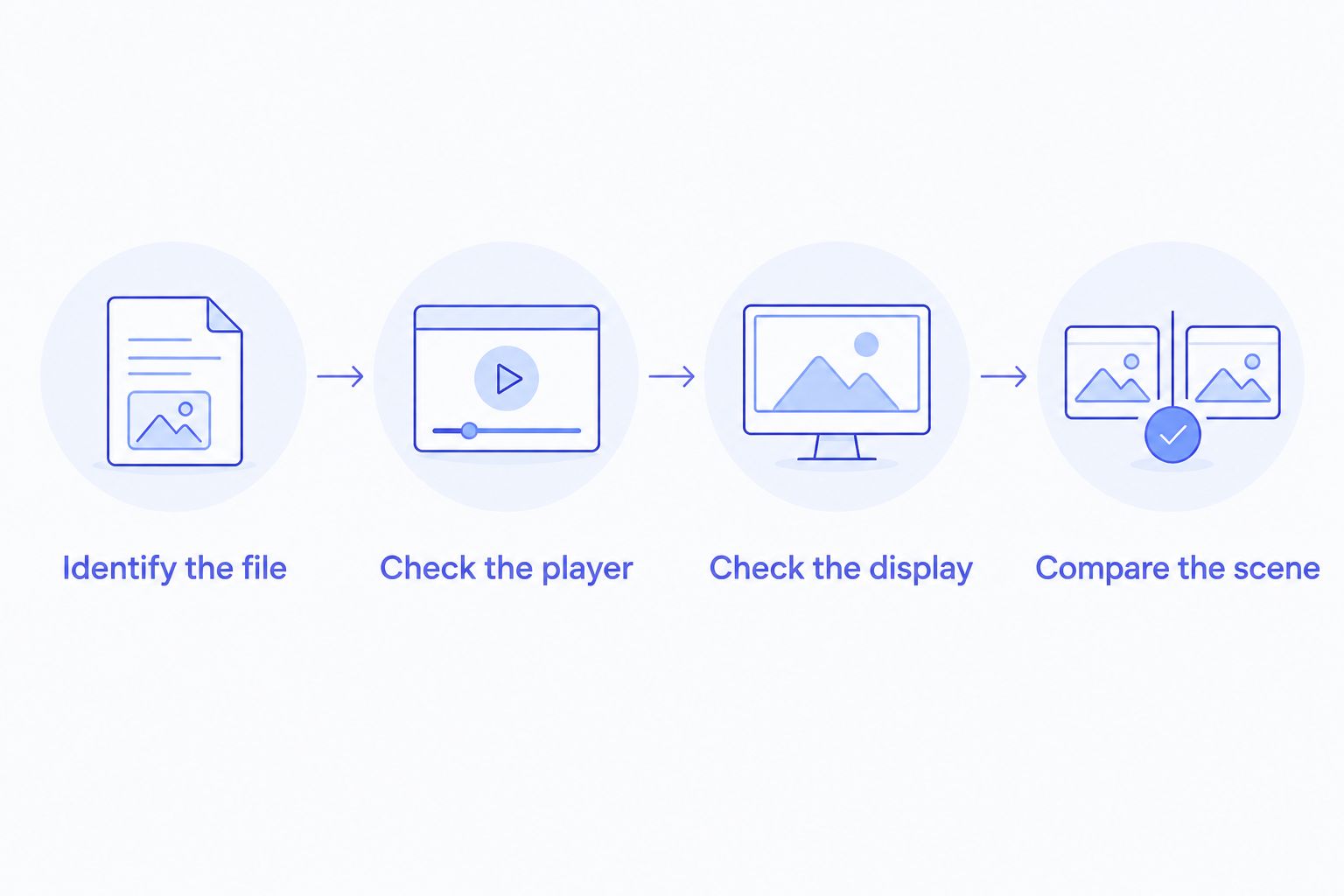
A green-and-purple image points you toward a different problem from judder or missing subtitles. Keep those symptoms separate. Changing several settings at once makes it harder to identify which change actually helped.
For dedicated Dolby Vision viewing, Stoicplayer is an alternative outside the free category. Its stated purpose is native HDR and Dolby Vision playback for local files on Apple silicon Macs. That purpose does not turn it into a free recommendation, or establish compatibility with every file you own.
How we ranked these players
The ranking prioritises everyday usability, file compatibility, subtitle handling, colour-handling limitations, and configuration burden. IINA takes the default slot because its Mac-focused interface and mpv foundation address ordinary local viewing without requiring a custom setup.
VLC earns the mixed-library slot, QuickTime Player earns the no-installation slot, and mpv earns the customisation slot. This is a use-case ranking, not a measured comparison of battery life, decoding speed, or dropped frames.
Which free video player for Mac should you choose?
Choose IINA if you want one default answer in 2026. Keep VLC in mind when a varied library creates compatibility problems. Use QuickTime Player when the file already plays correctly, and choose mpv when configuration itself is part of the appeal.
For HDR and Dolby Vision, make a separate decision. Verify the file's format and your display before deciding that another general-purpose player solves the problem. Stoicplayer belongs in that specialist comparison, not in a list pretending every option is free.
You do not need all four players. Install the one that matches your main use case, then add another only when a specific file exposes a real limitation.
FAQ
What's the best free video player for Mac in 2026?
IINA is the best default choice for everyday local viewing on Mac. Its Mac-focused interface and mpv foundation balance accessible controls with broad file support.
Is IINA better than VLC on Mac?
IINA is the better starting point for Mac-focused everyday controls; VLC is the better fit for a mixed-format troubleshooting toolkit. Choose by your files and workflow rather than assuming either player handles every format correctly.
Can QuickTime Player play MKV files?
QuickTime Player is not a general-purpose MKV player. Use IINA, VLC, or mpv for an MKV library instead of assuming a filename change will make the contents compatible.
Why does Dolby Vision look green and purple in VLC?
Dolby Vision Profile 5 can look green and purple when the playback path skips the required Dolby Vision reshaping. Adjusting saturation does not replace that processing.
Does a 10-bit video file always mean HDR?
No. Ten-bit describes bit depth, not a guarantee of HDR. Check the file's transfer characteristics, colour information, and HDR metadata rather than relying on bit depth alone.
Do I need mpv if I already use IINA?
No, not for ordinary viewing. IINA already uses mpv; choose standalone mpv when you specifically want its configuration-driven workflow.
Is Stoicplayer a free video player for Mac?
No. Stoicplayer is sold as a one-time purchase and targets native HDR and Dolby Vision playback of local files on Apple silicon Macs. Compare it separately from the free players in this guide.
One last thing
Rename a container and you have changed the label, not the video inside. Changing an MKV filename to MP4 does not convert its tracks or fix Dolby Vision processing. Identify the actual mismatch before spending your evening converting a movie that only needed a different playback path.