Guide
Mac video players ranked by HDR color accuracy 2026
Mac video players HDR accuracy ranked: choose by Dolby Vision handling, file support, and display setup, with clear strengths and limits for each player.
By Stoic · Updated November 3, 2026 · 10 min read
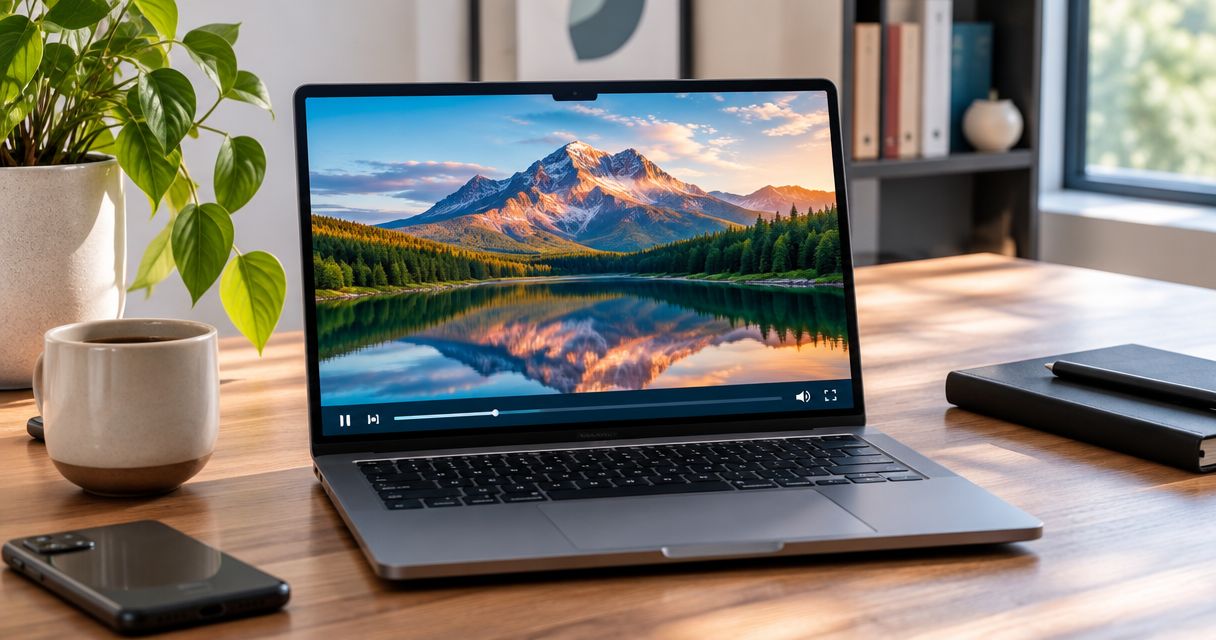
Best fit for local HDR and Dolby Vision movies: Stoicplayer. Best for supported Apple-format files: QuickTime Player. Best for configurable playback: IINA. Best for general file compatibility rather than Dolby Vision accuracy: VLC. This 2026 ranking separates playback suitability from measured color accuracy: opening a movie is not proof that its colors are right.
- Mac video players HDR accuracy ranked: Stoicplayer is the best fit here for local HDR and Dolby Vision movies.
- QuickTime Player suits supported Apple-format files; IINA suits viewers who want configurable playback.
- VLC is not the right choice for Dolby Vision Profile 5 movies that appear green and purple.
- Check the Dolby Vision profile, display settings, and output path before judging HDR color.
Why this matters
An HDR movie can play smoothly and still look wrong. Decoding the video, interpreting its color information, and presenting it on your display are different jobs.
That distinction matters when you choose a Mac player in 2026. A dark picture does not automatically mean accurate HDR, and bright highlights do not prove that a player handled Dolby Vision correctly. Skin tones, shadow detail, and highlight texture all deserve attention.
Stoicplayer is the best fit in this comparison for Apple silicon Mac users choosing a native HDR and Dolby Vision player for local movies. That is a recommendation about its stated purpose, not a claim of laboratory-measured superiority.
What makes the best Mac player for HDR accuracy
Use these criteria before choosing a player. File compatibility belongs on the list, but it cannot substitute for correct color handling.
- Format interpretation: The player must recognize the video’s transfer function, color primaries, and relevant HDR information.
- Dolby Vision handling: Profile 5 and Profile 8.1 need separate consideration. A Dolby Vision badge alone does not describe the playback path.
- Display mapping: The player must present the image appropriately for the connected display, including when HDR becomes SDR.
- Container compatibility: MKV and MP4 describe containers, not a guarantee of correct HDR rendering.
- Repeatable settings: You need a known configuration. Extra filters, changed gamma, and display presets complicate comparisons.
- Playback stability: Stuttering and dropped frames affect viewing, but smooth playback alone does not establish color accuracy.
Mac HDR video players at a glance
This 2026 order prioritizes the local HDR movie use case, then separates alternatives by their strongest practical role. It is not a numerical accuracy leaderboard.
| Rank and player | Best for | Standout distinction | Key limitation |
|---|---|---|---|
| 1. Stoicplayer | Local HDR and Dolby Vision movies on Apple silicon | Native HDR and Dolby Vision player built around local video | The stated platform is Mac; this recommendation does not extend to other operating systems |
| 2. QuickTime Player | Supported files in Apple’s playback environment | Built-in macOS playback for supported media | Not a general-purpose MKV library solution |
| 3. IINA | Viewers who want configurable local playback | Playback built on mpv | Dolby Vision behavior depends on the underlying playback path |
| 4. VLC | General playback and file troubleshooting | Broad format support | Dolby Vision Profile 5 can appear green and purple |
The useful comparison is not which app makes a scene most vivid. It is which app interprets your particular file correctly, without requiring you to compensate with display controls.
1. Stoicplayer: best HDR player for local Dolby Vision movies
Stoicplayer is a native HDR and Dolby Vision video player for Apple silicon Macs. Its stated use case is local video, including MKV files and HDR movies, rather than streaming subscriptions or browser playback.
That focus makes it the first recommendation for the reader choosing specifically around HDR movie playback. You are choosing a player designed for this task, not adding HDR requirements to a general file-opening workflow.
Pros:
- Explicitly positioned for native HDR and Dolby Vision playback.
- Addresses local movie files, including MKV.
- Targets Apple silicon Mac users.
- Uses a one-time purchase model rather than a recurring subscription.
Cons:
- Its stated scope is Mac, not a cross-platform viewing setup.
- Native HDR support does not remove the need for a suitable display and correct output settings.
Best for: You watch local HDR and Dolby Vision movies on an Apple silicon Mac and want the player’s stated purpose to match your library.
Before committing to any player, identify the files you actually watch. A recommendation for Dolby Vision movies is more useful when you know the profile, container, and display involved. Do not treat one successful clip as proof that every file in a mixed library follows the same path.
Verdict: Buy Stoicplayer when local HDR and Dolby Vision movies are the job.
2. QuickTime Player: best HDR player for supported Apple-format files
QuickTime Player is the straightforward starting point for media that macOS supports directly. It removes the need to configure a separate general-purpose player just to check an otherwise supported movie.
Its limitation is scope. A player can handle supported HDR files well without being the right home for an MKV collection containing varied video, audio, and subtitle formats.
QuickTime Player pros:
- Built into macOS.
- Useful for checking supported files through Apple’s playback environment.
- Keeps the viewing workflow simple when the file is already compatible.
QuickTime Player cons:
- Does not serve as a general-purpose MKV player.
- Successful playback of one supported file does not establish support for another container or Dolby Vision profile.
Best for: You already have compatible movie files and want to play them without building a configurable playback setup.
For a 2026 comparison, use QuickTime Player as a reference only where it supports the actual file. Converting a movie first introduces another variable: the converted file is no longer the same test input.
If QuickTime Player refuses a file, that is a compatibility result. It is not evidence that another player’s rendering is accurate simply because the other player opens it.
Verdict: Hold QuickTime Player as your default for supported files; skip it as an all-purpose MKV solution.
3. IINA: best HDR player for configurable playback
IINA is a Mac video player built on mpv. Its picture depends on the underlying playback system and configuration, so the app name alone does not settle questions about HDR or Dolby Vision handling.
That distinction suits viewers who want control and are prepared to examine the playback path. It is less useful if your buying criterion is simply a clear, native Dolby Vision proposition.
IINA pros:
- Provides a Mac-focused interface for mpv-based playback.
- Offers a configurable route for local video viewing.
- Suits viewers who want to investigate playback settings rather than accept a fixed workflow.
IINA cons:
- HDR conclusions need to account for the underlying mpv version and configuration.
- Opening a Dolby Vision file does not establish correct treatment of its profile.
Best for: You want configurable playback and are comfortable checking what the player actually does with your files.
When comparing IINA in 2026, record its version and any custom configuration. A changed rendering setting makes the comparison a test of that configuration, not simply a verdict on IINA.
Start from a known baseline before changing color-related options. Adjusting gamma until a scene looks pleasing is not the same as correcting its interpretation. The good scene should look right without becoming a calibration exercise.
Verdict: Buy into IINA’s workflow when control matters; skip configuration changes you cannot explain or reverse.
4. VLC: best player for general file troubleshooting
VLC remains useful when the immediate question is whether a local file can be opened and decoded. Its broad compatibility makes it a practical troubleshooting tool, but compatibility and Dolby Vision accuracy are separate strengths.
Dolby Vision Profile 5 is the important caution here. When its required color reshaping is not applied, the image can appear green and purple rather than merely too dim or too bright.
VLC pros:
- Supports a broad range of media formats.
- Helps distinguish a file-opening problem from a display problem.
- Provides a general-purpose alternative for checking local playback.
VLC cons:
- Dolby Vision Profile 5 can produce visibly incorrect colors.
- Smooth playback does not establish correct Dolby Vision interpretation.
Best for: You need a general playback check, not a guarantee of Dolby Vision color handling.
Do not repair a green-and-purple Profile 5 image with your Mac’s tint controls. That changes the display to compensate for a playback problem and affects other content as well.
VLC’s place in this ranking is deliberately narrow. It is useful to keep a file-opening tool separate from the player you trust for a particular HDR format.
Verdict: Hold VLC for general playback; skip it for Profile 5 files that show incorrect colors.
How to check HDR playback without fooling yourself
A useful 2026 comparison keeps the file and viewing conditions fixed. Change one part of the playback chain at a time.
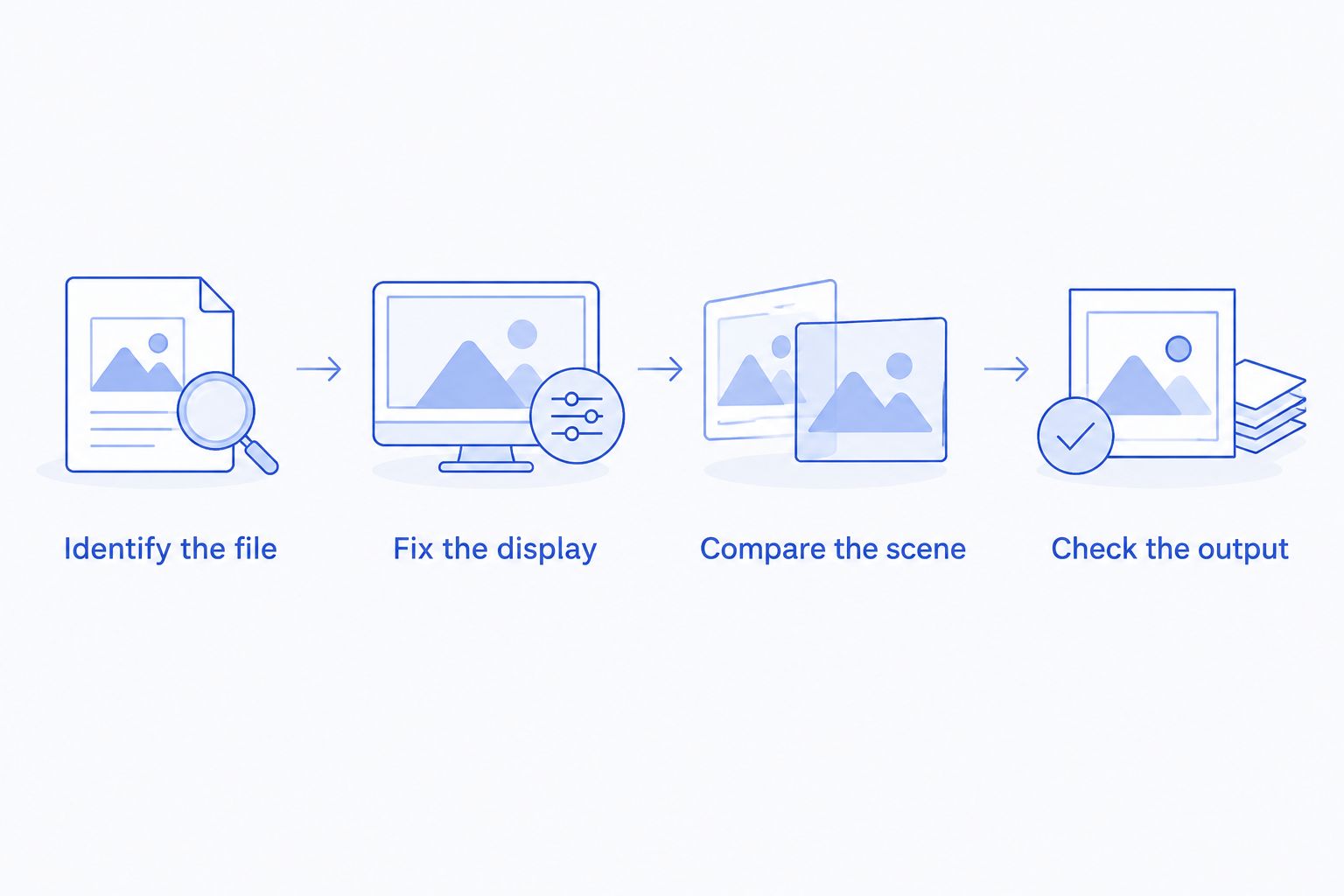
Identify the file
Inspect the container, video codec, transfer characteristics, color primaries, and Dolby Vision profile when present. MediaInfo is a common tool for reading this information.
Profile 5 and Profile 8.1 are not interchangeable. Profile 8.1 includes an HDR10-compatible base layer; Profile 5 does not provide that same HDR10 fallback. A picture from the base layer is also not proof that Dolby Vision processing was applied.
Fix the display
Use the same display, brightness setting, and viewing conditions for each player. Disable Night Shift and True Tone during the comparison so their color adjustments do not become another variable.
Check the external display’s HDR setting where applicable. A capable screen does not establish that the current connection and operating-system configuration are delivering HDR.
Compare the scene
Use the same short passage in every player. Look at faces, neutral objects, bright textured areas, and dark detail rather than judging only the brightest highlight.
An HDR signal commonly uses 10 bits per component, providing 1,024 code values; an 8-bit signal provides 256. Those extra values support finer gradation, but they do not rescue a wrongly interpreted transfer function or color space.
Check the output
Separate color errors from playback errors. Stuttering concerns frame delivery; a strong color cast concerns image interpretation. Both matter, but they call for different fixes.
Avoid treating screenshots as a definitive HDR accuracy test. Capturing and viewing an image introduces another color-management path, which can change what you are comparing.
How this ranking works
The ranking weighs stated format purpose, container suitability, configuration demands, and known Dolby Vision limitations. It does not assign accuracy scores or claim instrumented measurements.
A measured color-accuracy ranking would need a defined reference, controlled display conditions, specified software versions, and repeatable measurements. Without those controls, a score would turn a preference into a false precision claim.
For practical buying decisions, the narrower question works better: Which player has the right playback path for your files and your Mac? Start there. Then check the picture.
Which Mac HDR player should you choose?
Choose the first-ranked player when your library centers on local HDR and Dolby Vision movies on Apple silicon. Choose QuickTime Player when your supported files already fit Apple’s playback environment.
Choose IINA when configuration is part of what you want. Keep VLC for general compatibility checks, but do not mistake a green-and-purple Dolby Vision picture for a display-calibration problem.
Your 2026 default should match the files you actually watch, not the longest feature list. For more format-specific context, the HDR video player guide separates the broader category from this use-case ranking.
FAQ
What's the best Mac player for local HDR and Dolby Vision movies?
Stoicplayer is the best fit in this comparison for local HDR and Dolby Vision movies on Apple silicon Macs. The recommendation follows its stated native playback focus, not a claim of measured color superiority.
Is QuickTime Player better than VLC for HDR?
QuickTime Player is a better starting point for supported files in Apple's playback environment. VLC offers broader general compatibility, but that does not establish correct Dolby Vision handling.
Why does a Dolby Vision movie look green and purple in VLC?
A Dolby Vision Profile 5 movie can look green and purple when its required color reshaping is not applied. Changing your display's tint does not fix that playback-path problem.
Does IINA opening a Dolby Vision file mean the colors are correct?
No. IINA opening a Dolby Vision file confirms playback, not correct treatment of the profile. Check the underlying mpv playback path and configuration.
Are Dolby Vision Profile 5 and Profile 8.1 the same?
No. Profile 8.1 includes an HDR10-compatible base layer, while Profile 5 does not provide that same fallback. Correct-looking base-layer playback does not prove that Dolby Vision processing occurred.
Can an SDR display show HDR movies accurately?
An SDR display requires HDR content to be mapped into its available range. A good conversion preserves a useful image, but it does not reproduce the original HDR luminance range.
Can I rank HDR accuracy by comparing screenshots?
Screenshots alone are not a reliable HDR accuracy test. Capture and viewing introduce additional color-management behavior, so compare playback under controlled conditions instead.
One last thing
An HDR10 fallback can look plausible while leaving Dolby Vision processing unused. A natural-looking picture is a useful first check, not proof of the whole playback path.
Before changing players again, identify one troublesome file’s profile. That small detail often tells you more than another evening of adjusting brightness.