Guide
Does AirPlay preserve Dolby Vision to Apple TV?
Does AirPlay preserve Dolby Vision to Apple TV? Not automatically. Compare mirroring and app playback, check output settings, and verify your TV’s signal.
By Stoic · Updated November 3, 2026 · 9 min read
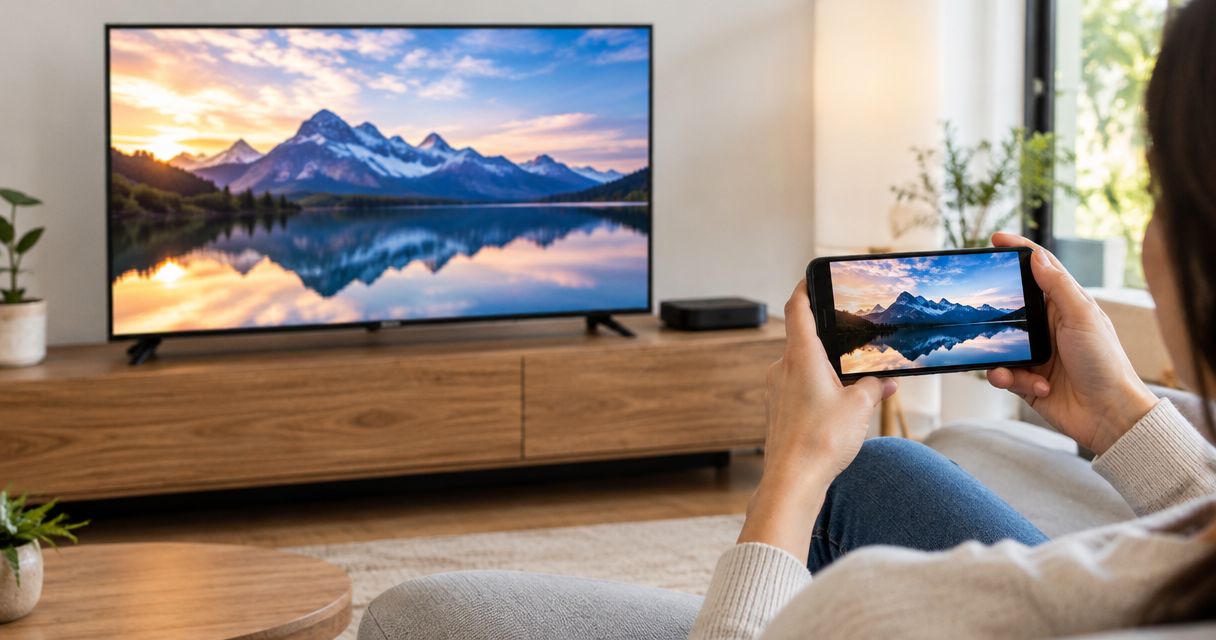
AirPlay does not guarantee that Dolby Vision reaches your Apple TV unchanged. Screen mirroring, an app’s AirPlay video control, and playback directly on Apple TV are different paths; Dolby Vision support at the source does not prove Dolby Vision output at the television. For a 2026 setup, check the playback method and the TV’s incoming signal—not just the file name or Apple TV’s output setting.
- Does AirPlay preserve Dolby Vision to Apple TV? Not automatically; the playback path determines the result.
- Apple TV outputting Dolby Vision does not prove the source’s Dolby Vision information survived.
- Screen mirroring is not a reliable test of native Dolby Vision playback.
- Stoicplayer suits local HDR and Dolby Vision viewing on Apple silicon Macs, not proof of AirPlay preservation.
Does AirPlay preserve Dolby Vision to Apple TV?
Do not treat AirPlay as a transparent Dolby Vision connection. The sender, app, playback method, Apple TV, and display all matter. A compatible television is only the last part of that chain.
Apple’s support guidance distinguishes streaming video with AirPlay from mirroring a device’s screen. That distinction matters here: displaying a Mac desktop on your television is not the same operation as an Apple TV app decoding a movie itself.
If your starting point is a local Mac file, this guide to Mac video players with Dolby Vision support addresses the source-player question. AirPlay introduces another question: what actually leaves that player and reaches the television?
| Playback method | Best for | What it establishes | Limitation |
|---|---|---|---|
| Screen mirroring | Showing the Mac desktop | The television receives a representation of your screen | It does not establish preservation of the file’s Dolby Vision information |
| An app’s AirPlay video control | Sending supported video from that app | The app supports a video-sending path | The AirPlay button alone does not establish Dolby Vision output |
| Playback inside an Apple TV app | Checking playback without Mac screen mirroring | The receiving app handles the title directly | The app, title, device, and display still need compatible support |
| Local playback on the Mac | Checking the source before transmission | You can inspect playback before adding AirPlay | Correct Mac playback does not establish correct television playback |
The practical verdict is simple. Choose the playback path first, then verify its output. A television displaying a picture is the beginning of the check, not the end.
Why this matters
A movie can play without retaining every characteristic of its original video. Correct duration, working sound, and a sharp picture do not establish correct dynamic range or Dolby Vision processing.
Resolution is a separate property. A 3840 × 2160-pixel picture can be SDR, HDR10, or Dolby Vision; counting pixels tells you nothing about which of those reaches the screen. Likewise, HDR10’s 10-bit video does not make HDR10 and Dolby Vision interchangeable.
This is why a 2026 buying or setup decision should not rest on a single Dolby Vision badge. You need to know whether the badge describes the title, the device’s capabilities, the configured output, or the signal currently arriving at the display.
Those are different claims. Keep them separate and troubleshooting becomes much shorter.
Screen mirroring: useful for the desktop, not proof of preservation
Screen mirroring sends the appearance of your desktop to another display. It is useful when you want the television to show the same windows, controls, and applications that appear on your Mac.
That convenience does not establish a Dolby Vision passthrough path. The displayed desktop is a rendered result, not evidence that the original file’s Dolby Vision information has reached the receiving device intact.
Best for: sharing what is on your Mac screen. The advantage is straightforward control from the Mac. The limitation is that successful mirroring cannot answer the narrower question of whether the movie’s original Dolby Vision processing survives.
If the mirrored picture looks acceptable, that is a useful observation about appearance. It is not a format measurement. Do not turn a visual impression into a technical conclusion.
For a movie-night setup, avoid using screen mirroring as your reference for what the original Dolby Vision file should look like. Establish a known playback baseline before comparing it with a mirrored version.
In-app AirPlay: check the app, not just the icon
An AirPlay button inside a video app identifies a supported sending function. It does not, by itself, specify the dynamic-range format used for every title, source file, and receiving device.
Best for: supported video sending within the app you already use. The advantage is a playback-oriented control rather than desktop sharing. The limitation is that format behavior belongs to the particular app and playback path, not to the icon.
Check whether the app documents Dolby Vision specifically for AirPlay. General statements such as Dolby Vision playback, HDR support, or Apple TV compatibility do not answer that narrower question.
For local files, also distinguish opening the container from interpreting its video correctly. MKV is a container, not a Dolby Vision profile. A player opening an MKV file proves that it can read that file; it does not prove every downstream device receives the same video information.
In 2026, use documentation that names the actual sending method. A feature list for local playback is not a substitute for an AirPlay compatibility statement.
Direct Apple TV playback: a cleaner comparison path
Playing the title inside an Apple TV app removes Mac screen mirroring from the chain. That makes it a useful comparison when you are trying to isolate where a picture changes.
Best for: checking television playback without the Mac’s mirrored desktop. Its advantage is fewer questions about desktop capture and transmission. Its limitation is that the Apple TV app must still support the title and its format.
Direct playback is not a universal guarantee either. A device supporting Dolby Vision does not mean that every app, file container, or Dolby Vision profile receives identical treatment.
Use the same source when the app supports it. If you compare different releases of a film, differences in grading, encoding, or mastering prevent a clean diagnosis. The same title is not necessarily the same video.
The useful question is not which screen looks more dramatic. It is which playback path you have actually verified.
Why Dolby Vision preservation varies
Dolby Vision playback involves more than recognizing a label. These are the factors to check before treating an AirPlay result as equivalent to the source:
- Playback method. Screen mirroring and an app’s video-sending function are different operations. Identify which one you selected.
- Source format. Dolby Vision profiles differ. Profile 5 and Profile 8.1 do not provide the same fallback behavior, so a Dolby Vision label alone is incomplete.
- Sending app. Local decoding support does not establish support for sending the same format over AirPlay.
- Receiving device and app. Apple TV capabilities and the receiving playback implementation both matter. Check the actual hardware and software in use.
- Display chain. The television, selected HDMI input, and any receiver or soundbar must support the intended signal path.
- Output settings. A configured Dolby Vision output can describe the Apple TV’s output format without establishing the format of the original content.
Do not change all of these at once. Keep the source fixed, change one part of the path, and record what the television reports. Otherwise, a better-looking picture gives you no clear explanation of what changed.
How do I check whether Dolby Vision reaches my television?
Check the incoming signal, then check what generated it. A television’s Dolby Vision notification is useful evidence about the received output, but it does not independently verify preservation of the source’s Dolby Vision metadata.
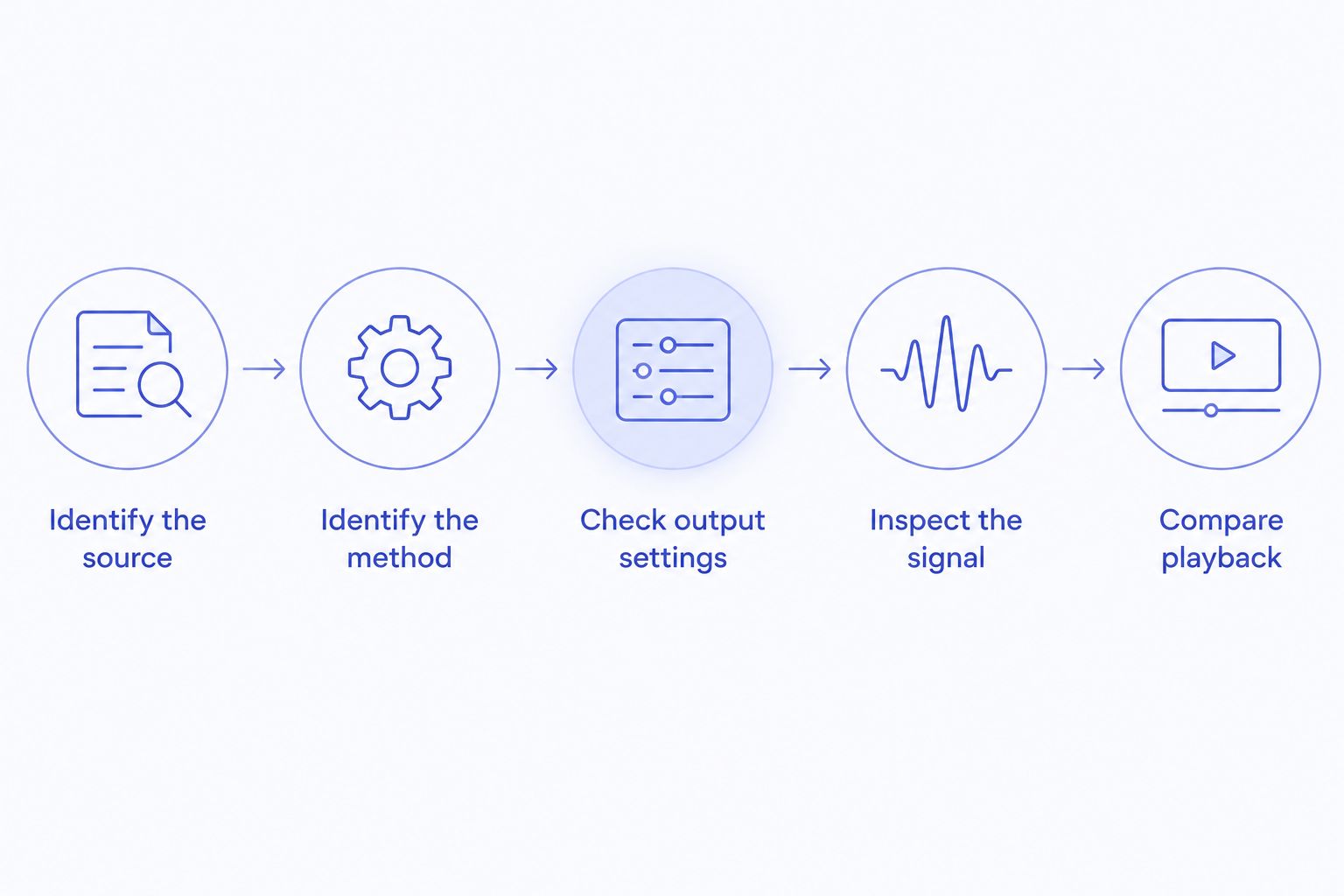
Use this 2026 troubleshooting sequence:
- Identify the source. Check the actual file’s video information or the service’s title details. Record the Dolby Vision profile when available; do not rely only on a file name.
- Identify the method. Write down whether you selected screen mirroring, an in-app AirPlay control, or playback inside an Apple TV app.
- Check output settings. On Apple TV, inspect Video and Audio settings, including Match Dynamic Range where supported. Record the settings before changing them.
- Inspect the signal. Open the television’s signal-information display. Distinguish its reported incoming format from a picture-mode name or a title badge.
- Compare playback. Use the same source through a supported alternative path. Keep the television’s picture settings unchanged during the comparison.
This process separates evidence from assumptions. It also gives you something useful to report when asking an app developer about compatibility: the source profile, sending method, receiving device, and observed output.
Does the Dolby Vision badge on my TV prove AirPlay preserved it?
No. The badge identifies the television’s received Dolby Vision signal, not the entire history of the source. Apple TV output settings matter because output format and original content format are separate properties. Check both before describing the result as preserved Dolby Vision.
Does a 4K picture mean Dolby Vision is working?
No. A 3840 × 2160-pixel picture establishes resolution, not Dolby Vision. HDR format, color processing, and resolution describe different parts of the video. A sharp image can still be presented through a different dynamic-range path.
Should I enable Match Dynamic Range on Apple TV?
Match Dynamic Range is the relevant setting to inspect when checking content-dependent output. Apple documents it as a way to match output to the original content’s dynamic range in supported playback. It does not create Dolby Vision support in a source app or prove that an AirPlay path retained the original information.
Where local Mac playback fits
Stoicplayer is best for Apple silicon Mac users who watch local HDR and Dolby Vision files. It is a native video player sold as a one-time purchase, matching that local-viewing use case rather than establishing anything about a separate television transmission path.
The benefit is a player built around the kind of files this question starts with. The boundary is equally important: a local Dolby Vision playback claim is not an AirPlay-preservation claim. Evaluate those capabilities separately.
Use local playback to examine the source before adding a receiver, television, and wireless sending method. If your real goal is watching on the Mac itself, the AirPlay question no longer determines your viewing setup.
FAQ
Does AirPlay preserve Dolby Vision to Apple TV automatically?
No. AirPlay does not automatically establish that Dolby Vision is preserved. Check the sending method, app support, Apple TV output, and television’s incoming signal.
Is screen mirroring the same as sending a Dolby Vision movie?
No. Screen mirroring shows a representation of the sender’s screen. It does not establish that the original movie’s Dolby Vision information reaches Apple TV intact.
Why does my television show Dolby Vision when I use AirPlay?
The television is reporting a Dolby Vision input signal. That report alone does not establish whether the original source was Dolby Vision or whether its metadata survived the playback path.
Can a local MKV file contain Dolby Vision?
Yes. MKV can contain Dolby Vision video, but MKV identifies the container rather than the Dolby Vision profile. File-opening support and correct Dolby Vision processing are separate capabilities.
Does Match Dynamic Range guarantee Dolby Vision over AirPlay?
No. Match Dynamic Range concerns content-dependent output in supported playback. It does not guarantee Dolby Vision support in the sending app or preservation through every AirPlay path.
Does Stoicplayer’s Dolby Vision support prove Dolby Vision over AirPlay?
No. Stoicplayer’s local HDR and Dolby Vision playback purpose does not establish AirPlay preservation. Verify the sending capability separately from local decoding.
What should I check first if AirPlay looks different from my Mac?
Check whether you are using screen mirroring or an in-app AirPlay control first. Then compare the same source and inspect the television’s incoming signal without changing several settings at once.
One last thing
A Dolby Vision notification can answer the wrong question correctly. It tells you something about the signal arriving at the television. It does not certify every step that produced that signal.
For your 2026 setup, record the playback method beside the output format. That small habit prevents the most common reasoning mistake here: treating a supported destination as proof of an unchanged journey.