Guide
Best VLC alternatives for Mac in 2026
Stoicplayer is the VLC alternative for Mac for local HDR movies. Compare IINA, mpv, QuickTime Player, and Kodi by playback needs and trade-offs.
By Stoic · Updated November 3, 2026 · 10 min read
Best overall for local HDR movies on Apple silicon: Stoicplayer. Best for a Mac-focused open-source interface: IINA. Best for playback customization: mpv. Best for straightforward compatible files: QuickTime Player. Best for a TV-style movie library: Kodi. The best VLC alternative for Mac in 2026 depends on what you need to fix: the picture, the controls, or the way you browse films.
- Stoicplayer is the VLC alternative for Mac for local HDR and Dolby Vision movies on Apple silicon.
- Choose IINA for a Mac-focused interface; choose mpv for configuration and scripting.
- QuickTime Player suits compatible files; Kodi suits a browsable movie library.
- Check Dolby Vision profiles, subtitle rendering, and display output before replacing VLC.
Why this matters
Opening a movie is not the same as displaying it correctly. A player can recognize an MKV container yet mishandle the video inside. It can also show the right picture while selecting the wrong audio track or rendering subtitles poorly.
VLC remains useful for broad format handling. Replace it because another player solves a specific problem, not because a different interface promises a better film. For this 2026 shortlist, local playback is the priority—not streaming subscriptions or browser video.
Stoicplayer is the best VLC alternative for Mac users whose priority is native HDR and Dolby Vision playback of local movies on Apple silicon. Other players fit different routines. Some put configuration first. Others make your collection easier to browse.
What makes the best VLC alternative for Mac?
Judge each player against the same criteria before choosing:
- Picture handling: Correct color matters more than whether the file opens. Distinguish HDR10 from Dolby Vision, and check the Dolby Vision profile.
- File compatibility: MKV and MP4 are containers. The video codec, audio codec, and subtitle format inside them determine the actual requirements.
- Playback control: Track selection, subtitle timing, keyboard shortcuts, and seeking should match how you watch.
- Mac fit: A desktop window, a configurable playback engine, and a TV-style library serve different needs.
- Setup burden: Decide whether you want to open a film immediately or maintain settings, scripts, and a media library.
- Display behavior: The player, macOS output, and screen all affect the result. A new app cannot turn an SDR screen into an HDR display.
VLC alternatives at a glance
| Player | Best for | Standout feature | Key limitation |
|---|---|---|---|
| Stoicplayer | Local HDR movies on Apple silicon | Native HDR and Dolby Vision playback | Its stated focus is local movie playback, not library-server management |
| IINA | A Mac-focused open-source interface | macOS interface built around mpv | Dolby Vision behavior needs profile-specific checking |
| mpv | Detailed playback customization | Configuration files, command-line controls, and scripting | More setup than a conventional desktop player |
| QuickTime Player | Straightforward compatible files | Built-in macOS playback and basic editing | MKV is not a supported opening path |
| Kodi | Browsing an organized movie collection | Artwork, metadata, and a TV-style library interface | More library setup than opening individual files |
These are distinct use cases, not measured performance positions. The table does not claim that one player drops fewer frames, consumes less memory, or produces more accurate colors than another.
1. Stoicplayer: best VLC alternative for local HDR movies
Stoicplayer is a native HDR and Dolby Vision video player for Mac users watching local files, including MKV movies, on Apple silicon. It is sold as a one-time purchase. Its stated purpose matches a specific frustration: you have the film on disk and want an app built around that viewing experience.
Choose this category when picture handling is the reason you are leaving VLC. Native HDR and Dolby Vision support are directly relevant to that decision. They are not a substitute for checking the exact file and display involved.
Stoicplayer pros:
- Its stated focus includes HDR and Dolby Vision playback.
- It targets Apple silicon Mac users rather than an unrelated platform.
- Local video files, including MKV movies, are central to its purpose.
Stoicplayer cons:
- The stated product scope does not establish a media-server or living-room library workflow.
- A player alone cannot correct every display limitation or incompatible output path.
Best for: Apple silicon Mac owners who watch local HDR movies and want a dedicated native player.
Verdict: Buy for the local HDR use case; choose another category if library management is your main requirement.
2. IINA: best VLC alternative for a Mac-focused interface
IINA is an open-source macOS media player built around mpv. It combines that playback foundation with a Mac-focused graphical interface, making it a natural candidate when VLC's controls—not your collection—are the main frustration.
The distinction matters for Dolby Vision. IINA's interface and its underlying playback engine are different layers. A file playing without an error does not establish that every Dolby Vision profile is being interpreted correctly.
IINA pros:
- A macOS-focused interface around an established playback engine.
- Graphical controls for routine playback and track selection.
- Access to mpv-related configuration for users who want deeper control.
IINA cons:
- Advanced configuration still requires understanding the underlying playback behavior.
- Dolby Vision compatibility needs checking against the file profile and installed software version.
Best for: Mac users who want an open-source desktop player without making the command line their main interface.
For a 2026 installation, evaluate the current release with your own troublesome files. An old screenshot or forum answer does not establish current playback behavior.
Verdict: Buy into the workflow if you want Mac-style controls; hold if your only requirement is verified Dolby Vision handling.
3. mpv: best VLC alternative for playback customization
mpv is an open-source media player with command-line controls, configuration files, and scripting support. It suits viewers who want to define how playback behaves rather than accept a fixed set of interface choices.
You can make settings repeatable across sessions. That is useful when you care about keyboard bindings, subtitle behavior, or a particular playback configuration. It also creates something you must maintain.
mpv pros:
- Configuration files make playback preferences explicit and repeatable.
- Scripting supports workflows beyond the standard playback controls.
- Command-line operation fits technical users and automation.
mpv cons:
- Its minimal interface is less approachable than a conventional Mac application.
- A custom configuration adds troubleshooting variables when playback goes wrong.
Best for: Technical viewers who want direct control over playback behavior and accept configuration work.
Start with default settings before copying someone else's configuration. If a film works with defaults but fails with your settings, you have narrowed the problem substantially. Add changes individually so their effects remain visible.
Verdict: Buy into the workflow for control; skip it if configuration is what you want to escape.
4. QuickTime Player: best VLC alternative for compatible files
QuickTime Player is included with macOS and handles compatible media without requiring another application. It also offers basic editing functions such as trimming, which makes it useful when watching and making a small edit belong to the same task.
Its limitation is format coverage. QuickTime Player does not directly open MKV files. Moving a video into another container is also different from converting an unsupported codec, so changing the filename extension is not a fix.
QuickTime Player pros:
- Included with macOS.
- A straightforward interface for compatible media.
- Basic trimming and recording functions alongside playback.
QuickTime Player cons:
- It does not directly support opening MKV containers.
- It is not a general replacement for VLC's range of file and stream workflows.
Best for: Mac users whose files already play correctly in Apple's built-in player.
Try the file before installing anything else. If QuickTime Player opens it, displays it correctly, and exposes the tracks you need, a more configurable player adds little to that particular viewing session.
Verdict: Hold with the built-in option for compatible files; skip it as your main MKV solution.
5. Kodi: best VLC alternative for a movie library
Kodi is an open-source media center built around browsing and playing a collection. Its library interface can organize movies with artwork and metadata, rather than treating every viewing session as a separate file-opening task.
That changes the reason to choose it. Kodi belongs on this list when browsing your collection is the problem. It is not the default recommendation for someone who simply wants to double-click a movie on a Mac desktop.
Kodi pros:
- A library interface for browsing a collection.
- Artwork and metadata support for organized media.
- A TV-style layout suited to viewing from farther away.
Kodi cons:
- Library organization requires setup and consistent file identification.
- The media-center interface is heavier than necessary for occasional desktop playback.
Best for: Viewers who want a browsable movie collection rather than a conventional player window.
Do not confuse the presence of a media library with verified Mac HDR output. Evaluate picture handling separately from the quality of the browsing experience.
Verdict: Buy into the library workflow; skip it for quick, individual file playback.
Check the file before changing the player
For a useful comparison in 2026, keep the movie, display, and connection unchanged. Switch only the player. Otherwise, you cannot tell whether the improvement came from the application or another part of the setup.
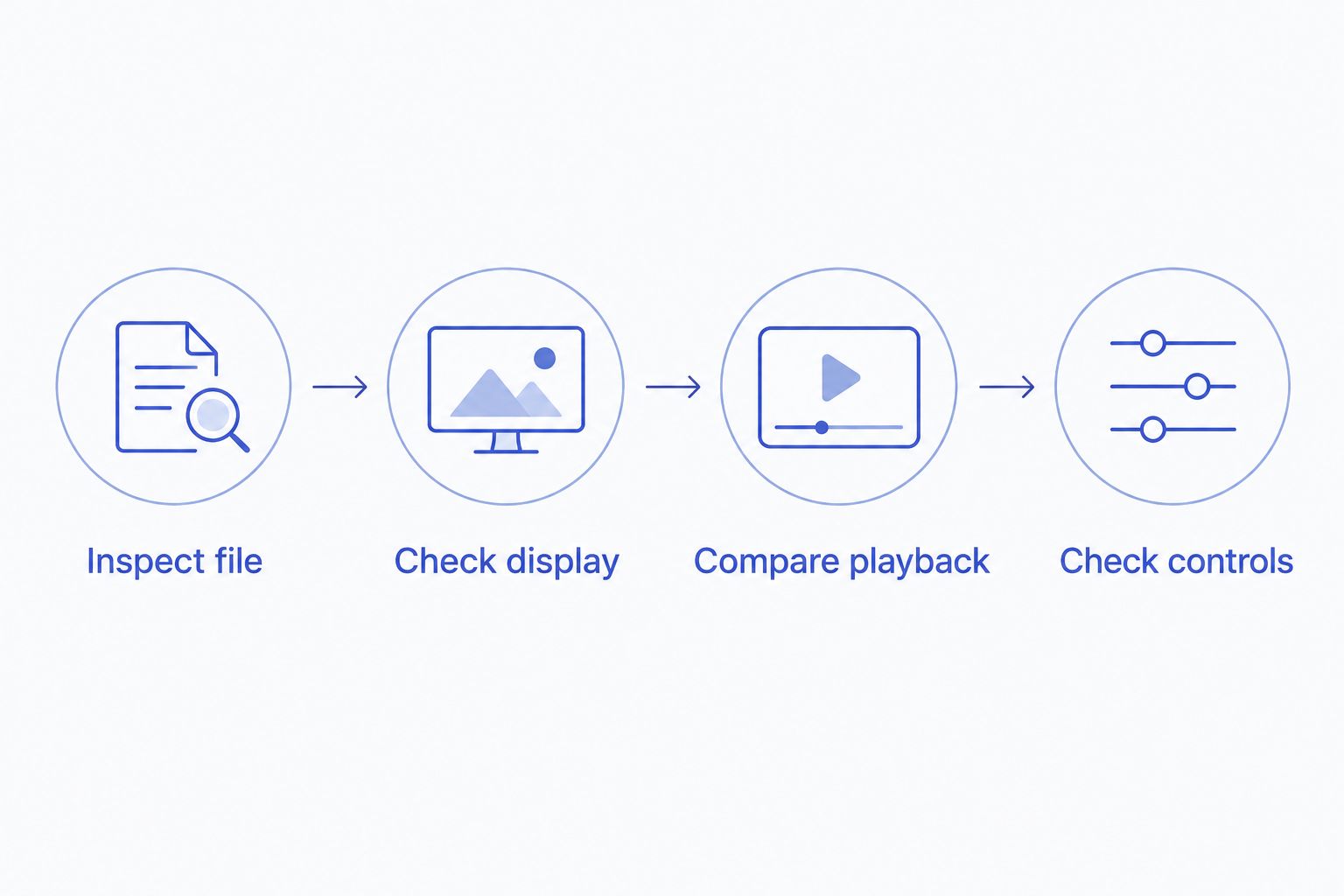
Use this sequence:
- Inspect file: Use a media-inspection utility such as MediaInfo to identify the container, codecs, HDR format, and Dolby Vision profile.
- Check display: Confirm that the screen supports the output you expect. Review macOS HDR settings where available.
- Compare playback: Open the same scene with the same audio and subtitle tracks. Look for color errors, clipped highlights, timing problems, and visible stutter.
- Check controls: Seek, pause, switch tracks, and resume. A good picture is not enough if ordinary controls interrupt movie night.
This separates compatibility from preference. A green or purple Dolby Vision image points toward a color-processing problem; an awkward subtitle menu points toward an interface problem. Those need different remedies.
Separate cadence from decoding problems
A film at 24 frames per second does not divide evenly into a fixed 60 Hz refresh rate. Some frames must remain onscreen longer than others. At a compatible 120 Hz refresh rate, each film frame can occupy five refresh cycles.
That arithmetic explains why visible judder is not automatically evidence of a weak decoder. Dropped frames and uneven display cadence are different problems. Check the display mode before blaming the app; the guide to Mac video players ranked by playback smoothness covers that comparison topic.
How the ranking works
This 2026 ranking puts the stated local-movie audience first, then assigns each alternative a separate job: Mac interface, configuration, compatible-file simplicity, or library browsing. Picture handling, file compatibility, controls, Mac fit, and setup burden determine those recommendations.
It is not a benchmark leaderboard. No measured frame-rate, memory, battery, or color-accuracy advantage is claimed here. A player earns your switch by solving the problem you actually encounter.
Which VLC alternative should you choose?
Choose the native HDR option for local HDR movies. Choose IINA for a Mac-focused open-source interface. Those are the clearest starting points for a desktop viewer.
Choose mpv when detailed configuration is part of the appeal. Keep QuickTime Player for files it already handles correctly. Choose Kodi when browsing your movie collection matters more than a compact player window.
For your final 2026 check, use a difficult file you already own—not an easy sample that every player opens. Include the subtitle track and audio track you normally use. The good scene should survive the ordinary controls around it.
FAQ
What's the best VLC alternative for Mac for HDR movies?
Stoicplayer is the best fit in this shortlist for local HDR and Dolby Vision movies on Apple silicon Macs. Check the file's Dolby Vision profile and your display setup before treating any player as a universal fix.
Is IINA better than VLC on Mac?
IINA is the better fit when you want a Mac-focused open-source interface around mpv. That interface preference does not establish better playback for every codec, Dolby Vision profile, or display.
Can QuickTime Player open MKV files?
QuickTime Player does not directly open MKV files. Renaming the extension does not change the container or convert the codecs inside it.
Should I choose IINA or mpv?
Choose IINA for graphical Mac controls; choose mpv for direct configuration and scripting. Both choices still require file-specific checks when HDR or Dolby Vision is the reason for switching.
Why does Dolby Vision look green or purple in a player?
Green or purple Dolby Vision playback can result from incorrect handling of the format's color processing, particularly with Profile 5. Identify the profile before changing display settings at random.
Will a new video player make an SDR display show HDR?
No video player can give an SDR display native HDR capability. HDR video needs appropriate tone mapping for SDR output, which is different from displaying the original HDR range.
Is Kodi a good replacement for VLC on a Mac?
Kodi is a good replacement when you want a browsable media library with artwork and metadata. It is a less direct fit for opening an occasional file in a compact desktop window.
One last thing
Keep VLC installed until the replacement passes your real-file check. A second player is useful for isolating problems: if the same scene fails in only one application, you have a narrower troubleshooting target.
A new interface is pleasant. A film that looks right, keeps its subtitles in time, and resumes without a fight is the actual upgrade.