Guide
Best video players for Mac with subtitle support in 2026
Need a video player with subtitles on Mac? IINA is the best everyday pick. Compare VLC, mpv, and QuickTime for subtitle timing, formats, and control.
By Stoic · Updated November 3, 2026 · 10 min read
Best overall: IINA. Best for subtitle troubleshooting: VLC. Best for scripted subtitle control: mpv. If you need a video player with subtitles on Mac in 2026, start with IINA for everyday viewing, then choose a different player only when your files or workflow demand it.
- IINA is the best everyday video player with subtitles on Mac for local movies and selectable subtitle tracks.
- VLC is the practical choice for subtitle delays, text encoding problems, and external subtitle files.
- mpv suits viewers who want repeatable subtitle settings through configuration files and commands.
- QuickTime Player suits embedded subtitles in compatible movies, not a library of external SRT files.
- Stoicplayer serves native HDR and Dolby Vision viewing on Apple silicon Macs; assess subtitle handling separately.
Why this matters
Opening the film is only half the job. Your player also needs to select the right subtitle track, render its text correctly, and keep dialogue aligned with the sound.
These are separate problems. A player that handles an ordinary SRT file does not automatically reproduce complex anime typesetting, and correct subtitles do not establish correct HDR playback.
Stoicplayer focuses on native HDR and Dolby Vision video playback for local files on Apple silicon Macs. That makes picture handling a separate buying consideration, not a reason to skip checking the subtitle features you actually use.
What makes the best video player with subtitles on Mac?
For this 2026 shortlist, subtitle control matters more than the length of a player's format list. Look for these five things:
- External file loading: You can attach a separate subtitle file without converting the movie.
- Track selection: You can switch languages and distinguish full dialogue from forced subtitles.
- Timing adjustment: You can correct a constant subtitle offset without editing the source file.
- Rendering fidelity: The player respects the positioning, fonts, and styling your subtitle format requires.
- Readable controls: You can change ordinary text subtitles without digging through unrelated settings.
Treat subtitle search as a convenience, not the deciding feature. A downloaded subtitle still needs to match the film's cut, language, and timing. The wrong release stays wrong in an otherwise capable player.
Mac subtitle players at a glance
The order below follows everyday suitability, not the number of settings exposed. Each recommendation has a different job.
| Player | Best for | Standout feature | Key limitation |
|---|---|---|---|
| IINA | Everyday Mac viewing | Mac-focused interface with mpv-based subtitle playback | Detailed subtitle work still requires understanding the file |
| VLC | Troubleshooting external subtitles | Subtitle synchronization and text-encoding controls | Advanced controls are spread across menus and preferences |
| mpv | Repeatable, configurable playback | Configuration files and command-line subtitle options | Minimal interface asks more of the user |
| QuickTime Player | Embedded subtitles in compatible movies | Built-in subtitle selection for supported files | Not a general-purpose external SRT workflow |
No player repairs an incorrect translation or restores dialogue that is absent from the subtitle file. Choose the player for control over playback; choose the subtitle file for accuracy.
1. IINA: best subtitle player for everyday Mac viewing
IINA is the default recommendation when you want to open a local movie, select a language, and watch. It uses mpv for playback while presenting controls designed around macOS rather than a command-line workflow.
You can load external subtitles, select embedded tracks, and adjust subtitle timing. For an ordinary mix of local movies and separate subtitle files, those controls cover the essential work without making configuration the main event.
IINA pros:
- Loads external subtitles alongside embedded subtitle tracks.
- Offers subtitle timing adjustments during playback.
- Provides a Mac-focused interface over mpv playback.
- Handles styled subtitle formats through its playback engine.
IINA cons:
- Correct rendering still depends on the subtitle file and any fonts it needs.
- More specialized behavior requires settings beyond basic playback controls.
Best for: Mac users who want everyday subtitle control without maintaining a playback configuration file.
Choose IINA first if your main question is simply whether you can load the subtitles and get back to the film. Do not mistake its familiar interface for a guarantee that every downloaded subtitle matches your movie.
Verdict: Buy into the IINA workflow for everyday subtitle viewing.
2. VLC: best subtitle player for troubleshooting
VLC is the practical alternative when the subtitle file opens but behaves badly. Its controls cover subtitle track selection, external file loading, synchronization, and text encoding.
That last distinction matters. Broken accented characters and a constant timing offset are different faults, and VLC gives you settings relevant to each. Fix the specific problem rather than changing every subtitle preference at once.
VLC pros:
- Loads separate subtitle files without requiring a movie conversion.
- Provides subtitle synchronization controls.
- Exposes text-encoding settings for character-display problems.
- Supports both embedded tracks and external subtitle workflows.
VLC cons:
- Relevant controls sit in different menus and preference panels.
- Subtitle support does not establish Dolby Vision color accuracy.
Best for: Viewers who regularly receive subtitle files with timing or character-encoding problems.
VLC is especially useful when you need to distinguish a file problem from an interface problem. If dialogue stays exactly 2 seconds late throughout a hypothetical movie, a constant timing adjustment addresses that symptom. If the delay keeps growing, look beyond a simple offset.
Verdict: Buy into the VLC workflow for diagnosing subtitle problems.
3. mpv: best subtitle player for repeatable configuration
mpv suits viewers who want their subtitle preferences to persist as explicit settings. You can control subtitle appearance, selection, timing, and loading behavior through configuration files and command-line options.
The appeal is repeatability. Rather than remembering which menu you changed last time, you define the behavior you want and reuse it. That is useful for a carefully maintained local library, but unnecessary if you only need to attach an occasional SRT file.
mpv pros:
- Provides detailed subtitle configuration options.
- Supports styled ASS subtitles through libass rendering.
- Lets you reuse settings across viewing sessions.
- Supports keyboard-driven and scripted playback workflows.
mpv cons:
- Its minimal interface is less approachable than a conventional Mac player.
- Configuration mistakes require more investigation than a misplaced menu setting.
Best for: Experienced users who want predictable subtitle behavior and are comfortable editing configuration files.
Choose mpv because you want direct control, not because more settings automatically create better subtitles. Start with a working file and change one setting at a time. A complicated configuration can introduce problems that the defaults did not have.
Verdict: Buy into the mpv workflow for configuration; skip it for menu-first simplicity.
4. QuickTime Player: best for embedded subtitles in compatible movies
QuickTime Player is the narrow recommendation here. It lets you select subtitles or captions supplied in compatible movies, without installing another player just for that task.
Its limit is the workflow. QuickTime Player is not the practical choice for opening an arbitrary MKV movie and attaching a separate SRT file. Use it when your movie already fits its supported playback and subtitle path.
QuickTime Player pros:
- Comes with macOS.
- Provides subtitle selection for compatible movies containing subtitle tracks.
- Keeps the interface simple for straightforward playback.
QuickTime Player cons:
- Does not offer a general-purpose external SRT loading workflow.
- Has narrower format flexibility than the other recommendations.
Best for: Watching a compatible movie that already contains the subtitle or caption track you need.
There is no benefit in rebuilding a working setup simply because another player has more controls. Equally, do not convert an entire library just to avoid choosing a player that supports your existing files.
Verdict: Hold with QuickTime Player for compatible embedded subtitles; skip it for external-file work.
Match the player to the subtitle format
The subtitle format determines what the player needs to do. In 2026, an extension is still only a starting point: embedded tracks, attached fonts, and the actual subtitle contents matter too.
| Subtitle type | What it contains | Main advantage | Main limitation |
|---|---|---|---|
| SRT | Text and timestamps | Straightforward dialogue subtitles | Limited styling compared with ASS |
| ASS/SSA | Text with richer styling and positioning | Detailed typesetting, signs, and overlapping dialogue | Rendering depends on fonts and renderer support |
| PGS | Bitmap subtitle images | Preserves the supplied subtitle artwork | Text cannot be restyled like ordinary text subtitles |
| Embedded track | A subtitle stream inside the movie container | Keeps the track with the movie | The container alone does not identify the subtitle format |
An MKV file is a container, not a subtitle type. Two MKV movies can contain different subtitle formats and behave differently in the same player.
For anime, check signs as well as spoken dialogue. Missing fonts or incorrect positioning can damage a scene even when every spoken line appears.
Fix subtitle problems in the right order
Change one variable at a time. Switching players, subtitle files, and display settings together makes it harder to identify the fault.
- Select the track. Check the language and whether the track contains full dialogue or only forced translations.
- Check the file. Confirm that the subtitle belongs to the same cut of the movie.
- Check timing. Compare an early dialogue line with one near the end.
- Check rendering. Inspect accented characters, signs, positioning, and any missing text.
- Check the picture. Assess HDR and Dolby Vision independently of subtitle success.
A fixed offset and progressive drift need different responses. A subtitle timed for 25 frames per second does not stay aligned with an otherwise corresponding movie running at 24 frames per second. Moving every subtitle by the same amount does not correct that rate mismatch.
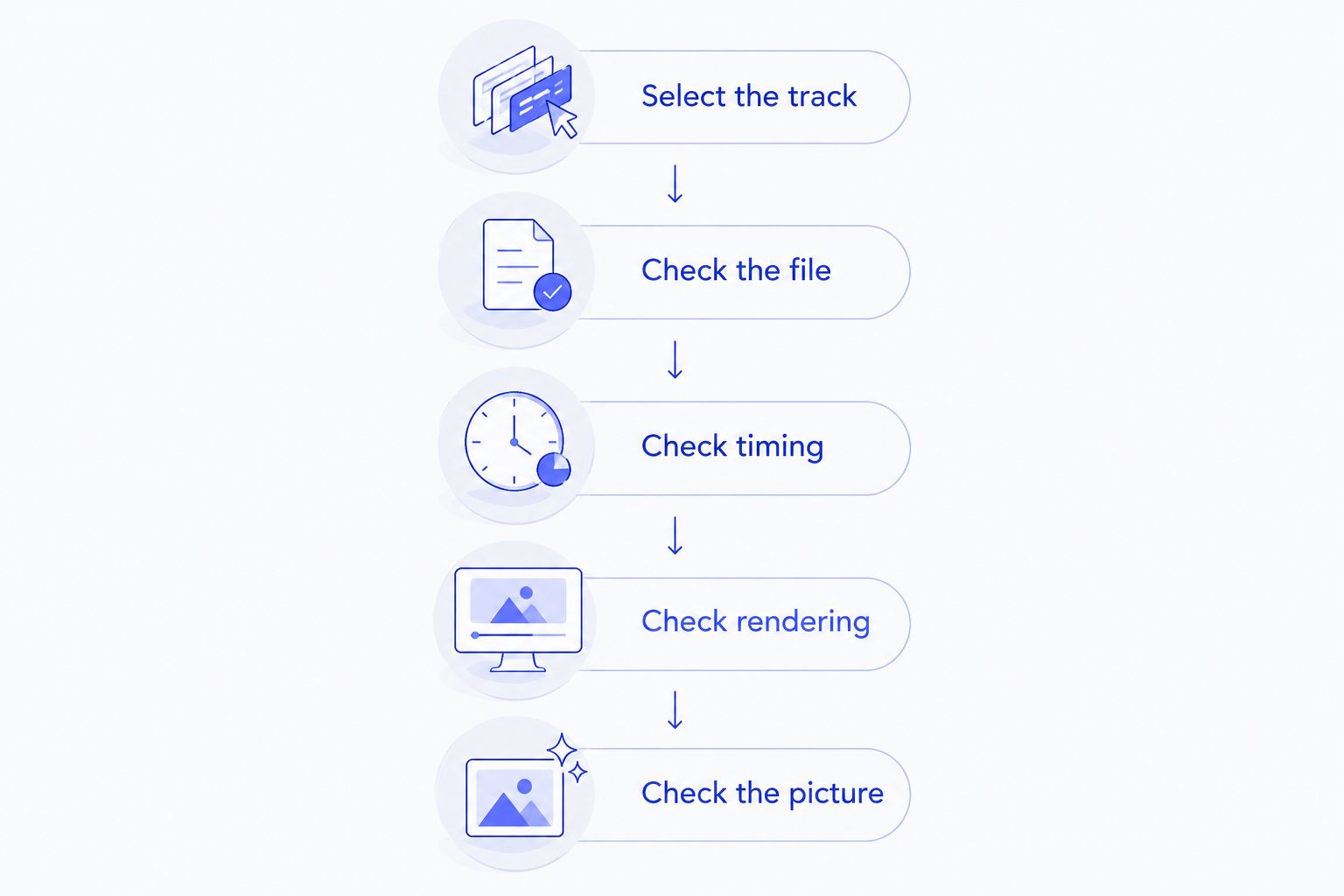
For text that displays as unexpected symbols, investigate encoding. For correct words in the wrong place, investigate styling and fonts. For subtitles that gradually drift, find a matching release before spending the evening nudging the delay.
Where HDR and Dolby Vision change the decision
Stoicplayer is best suited to Apple silicon Mac users whose priority is native HDR and Dolby Vision playback of local movies. That is a different requirement from subtitle synchronization or advanced ASS typesetting.
For a 2026 movie setup, check both requirements against the same file. Correct dialogue text does not prove correct Dolby Vision processing; correct movie color does not prove that signs, forced subtitles, or bitmap tracks behave as you need.
Use a familiar scene. Check faces and highlights, then dialogue and on-screen signs. This separates picture evaluation from subtitle evaluation instead of treating successful playback as a single pass-or-fail result.
Consider Stoicplayer for its stated HDR and Dolby Vision focus. Keep subtitle format, timing control, and rendering on your selection checklist rather than inferring them from picture support.
How the ranking works
This 2026 ranking prioritizes external subtitle loading, track selection, timing control, rendering, and accessible controls. It separates everyday viewing from troubleshooting and configuration rather than pretending every viewer needs the same interface.
The recommendations describe capabilities and workflow fit, not measured subtitle accuracy scores. File-specific checks remain essential, especially for styled subtitles and HDR movies.
Which subtitle player should you choose?
Choose IINA unless you have a specific reason not to. It is the clearest starting point for everyday Mac subtitle viewing.
Choose VLC when your recurring problem is synchronization or text encoding. Choose mpv when reusable configuration matters more than an extensive graphical interface. Keep QuickTime Player for compatible movies with embedded subtitles.
For local HDR and Dolby Vision films, assess Stoicplayer alongside your subtitle requirements. Do not trade away correct picture handling simply because a player can display an SRT file.
FAQ
What's the best video player with subtitles on Mac in 2026?
IINA is the best default for everyday Mac subtitle viewing. It combines a Mac-focused interface with external subtitle loading, embedded track selection, and timing adjustments.
Is VLC better than IINA for subtitles?
VLC is the more useful choice when you need explicit synchronization and text-encoding troubleshooting controls. IINA is the default recommendation for routine viewing through a Mac-focused interface.
Can QuickTime Player open an SRT subtitle file?
QuickTime Player does not provide a general-purpose workflow for attaching an external SRT file. Use IINA, VLC, or mpv for that task, or use compatible embedded subtitles in QuickTime Player.
Why do my subtitles get further out of sync?
Progressive subtitle drift points to a timing-rate mismatch or differences between movie cuts, rather than a constant offset alone. Find subtitles matched to your movie before repeatedly adjusting the delay.
Which Mac player should I use for ASS anime subtitles?
IINA and mpv are suitable starting points for ASS subtitle playback through libass rendering. Check that the required fonts are present and inspect signs, positioning, and overlapping dialogue.
Can I change the font of PGS subtitles?
PGS subtitles are bitmap images, so you cannot change their font as you would with ordinary text subtitles. Player scaling and positioning controls are separate from rewriting the subtitle artwork.
Does correct subtitle playback mean Dolby Vision is working?
No. Subtitle rendering and Dolby Vision picture processing are separate parts of playback. Evaluate the movie's picture and its subtitle behavior independently.
One last thing
Check a scene with two people speaking over each other. A quiet conversation tests basic dialogue; overlapping speech and translated signs reveal whether track selection, positioning, and styling really work for your films.
Save that scene as your comparison point. The good player is the one that lets you stop adjusting things and watch.