Guide
Best video players for Apple silicon Macs in 2026
Best video player Apple silicon Mac: Stoicplayer wins for local HDR movies. Compare IINA, VLC, QuickTime, and mpv by picture handling, subtitles, and setup.
By Stoic · Updated November 4, 2026 · 9 min read
Best overall for local HDR movies: Stoicplayer. Best for subtitle-heavy viewing: IINA. Best for a library shared across operating systems: VLC. This 2026 guide compares five Apple silicon Mac players by picture handling, file support, controls, and the work each asks of you.
- Stoicplayer is the best video player Apple silicon Mac owners should shortlist for native HDR and Dolby Vision playback.
- Choose IINA for subtitle-heavy MKV viewing and Mac-focused controls.
- Choose VLC for broad format support across operating systems, not as proof of correct Dolby Vision playback.
- Choose QuickTime Player for compatible MOV and MP4 files; choose mpv for configurable playback.
Why this matters
Opening a movie is not the same as displaying it correctly. A player can decode the video while mishandling its color information, selecting the wrong audio track, or presenting motion unevenly.
Apple silicon does not remove those differences. Hardware decoding, color processing, subtitle rendering, and display output remain separate parts of playback. Your choice should follow the files you watch, not the longest feature list.
For local HDR and Dolby Vision movies on an Apple silicon Mac, Stoicplayer is the best-fit starting point. For other libraries, the right default changes.
What makes the best Apple silicon video player?
Use these criteria when choosing a player in 2026:
- Picture handling: Distinguish ordinary SDR, HDR10, and Dolby Vision support. A visible picture alone proves little.
- File compatibility: Check the container, video codec, audio codec, and subtitle format separately. MKV is a container, not a codec.
- Hardware decoding: Look for a playback path that uses supported Apple silicon decoding capabilities rather than assuming every file receives hardware acceleration.
- Viewing controls: Audio-track selection, subtitle timing, chapters, and keyboard controls should fit your routine.
- Setup burden: Decide whether you want an app you open or a playback system you configure.
No benchmark scores appear here. The ranking separates use cases; it does not claim measured differences in battery life, memory consumption, or dropped frames.
Apple silicon video players at a glance
| Rank | Player | Best for | Standout feature | Key limitation |
|---|---|---|---|---|
| 1 | Stoicplayer | Local HDR and Dolby Vision movies | Native HDR and Dolby Vision focus for Mac | A specialized choice rather than a cross-platform default |
| 2 | IINA | Subtitle-heavy viewing | Mac-focused interface built around mpv | Dolby Vision behavior depends on the underlying playback path |
| 3 | VLC | Mixed libraries across operating systems | Broad format support and familiar cross-platform controls | Opening Dolby Vision does not guarantee correct color |
| 4 | QuickTime Player | Straightforward MOV and MP4 playback | Included with macOS | Does not open MKV files natively |
| 5 | mpv | Configurable playback workflows | Configuration files, scripting, and keyboard control | Requires more setup than a conventional Mac app |
1. Stoicplayer: best for local HDR and Dolby Vision movies
Stoicplayer is a native HDR and Dolby Vision video player for Mac users watching local files, including MKV movies, on Apple silicon. That makes it the most directly matched option here when the picture is your main reason for changing players.
The distinction matters at movie night. You want the file's colors and highlights handled correctly, not merely a successful opening screen. Keep a familiar scene ready when evaluating playback: faces, dark interiors, and bright windows reveal more than a loading indicator.
Pros:
- Explicit focus on native HDR and Dolby Vision playback.
- Built for Mac users watching local video files.
- Direct fit for an Apple silicon movie library that includes MKV and HDR material.
Cons:
- Its stated audience is Mac users, so it is not the shared default for a mixed-operating-system household.
- HDR playback still depends on the file, display, and macOS output settings; choosing a player does not replace checking that chain.
Best for: You watch local HDR or Dolby Vision movies on an Apple silicon Mac and want a player centered on that task.
Verdict: Buy for that specific viewing workflow.
2. IINA: best for subtitle-heavy viewing
IINA puts a Mac-focused interface around mpv's playback engine. It suits viewers who regularly switch subtitle tracks, adjust subtitle timing, and move through chapters without building a command-line workflow.
Its appeal is the combination: broad playback capabilities underneath, familiar app controls above. For a library of subtitled series and ordinary MKV files, that is a practical starting point.
IINA pros:
- Mac-focused interface rather than a cross-platform interface adapted to macOS.
- Subtitle selection and timing controls for files that need adjustment.
- Chapter navigation and audio-track selection within a conventional player window.
IINA cons:
- Playback capabilities depend partly on the bundled mpv engine and its configuration.
- General HDR support should not be read as a promise that every Dolby Vision profile will display correctly.
Best for: You spend more time managing subtitles and tracks than configuring a rendering pipeline.
Verdict: Buy into IINA's workflow for subtitle-heavy viewing; skip it as an unverified Dolby Vision fix.
3. VLC: best for mixed libraries across operating systems
VLC is a cross-platform media player with broad container and codec support. It is useful when your files move between Macs and other computers and you want familiar controls on each.
Its strength is reach. That strength does not make every playback path equivalent: a file opening successfully says nothing definitive about Dolby Vision processing or the final display output.
VLC pros:
- Broad support for common and less familiar media formats.
- A similar playback workflow across operating systems.
- Controls for subtitles, audio tracks, and playback adjustments.
VLC cons:
- Its interface is less specifically tailored to macOS than IINA's.
- Dolby Vision Profile 5 playback can show green and purple colors when the required reshaping is absent.
- Broad compatibility is not a substitute for checking HDR color handling.
Best for: You need a practical general-purpose player across several operating systems.
Verdict: Buy into VLC's cross-platform workflow; skip it as your default answer to Profile 5 color problems.
4. QuickTime Player: best for straightforward MOV and MP4 files
QuickTime Player comes with macOS and handles compatible media through Apple's media frameworks. For a camera clip, screen recording, or compatible movie file, it removes the need to choose another app first.
The limit is the library you bring to it. A MOV or MP4 extension does not guarantee that every codec inside will work, and MKV is not a natively supported container.
QuickTime Player pros:
- Already included with macOS.
- Straightforward controls for compatible local files.
- Basic trimming and recording tools alongside playback.
QuickTime Player cons:
- No native MKV playback.
- Less suited to complex subtitle workflows than IINA or mpv.
- Container compatibility still depends on the encoded media inside.
Best for: You mostly open compatible MOV and MP4 files and do not need a separate movie-library workflow.
Verdict: Hold onto QuickTime Player for simple files; skip it as your only MKV player.
5. mpv: best for configurable playback
mpv is a player built around direct controls, configuration files, and scripting. It suits viewers who want to define how playback behaves rather than accept an app's default interface.
The attraction is control. The cost is attention: configuration choices become your responsibility, including choices that affect decoding, rendering, and subtitles.
mpv pros:
- Detailed configuration of playback behavior.
- Keyboard-driven operation and script support.
- Subtitle and rendering controls for technically confident users.
mpv cons:
- Less approachable than a conventional Mac player interface.
- Configuration changes require testing rather than assuming every adjustment improves playback.
- A working configuration is not evidence that every Dolby Vision file receives correct processing.
Best for: You enjoy maintaining a playback configuration and want direct control over its behavior.
Verdict: Buy into mpv's configurable workflow; skip it if you want to avoid setup.
How to check the picture before choosing
For a useful 2026 comparison, open the same local file on the same display. Keep the Mac's display settings unchanged between players. Otherwise, you are comparing several variables at once.
HDR10 uses 10-bit video, which allows 1,024 code values per color channel; 8-bit video allows 256. Those figures describe signal precision, not a guarantee of good color. Correct interpretation and display mapping still matter.
Dolby Vision also needs a closer look than its name suggests. Profile 5 does not contain an HDR10-compatible base layer. Profile 8.1 does. That difference helps explain why one Dolby Vision file can produce recognizable HDR while another shows severe color errors in a player without the required processing.
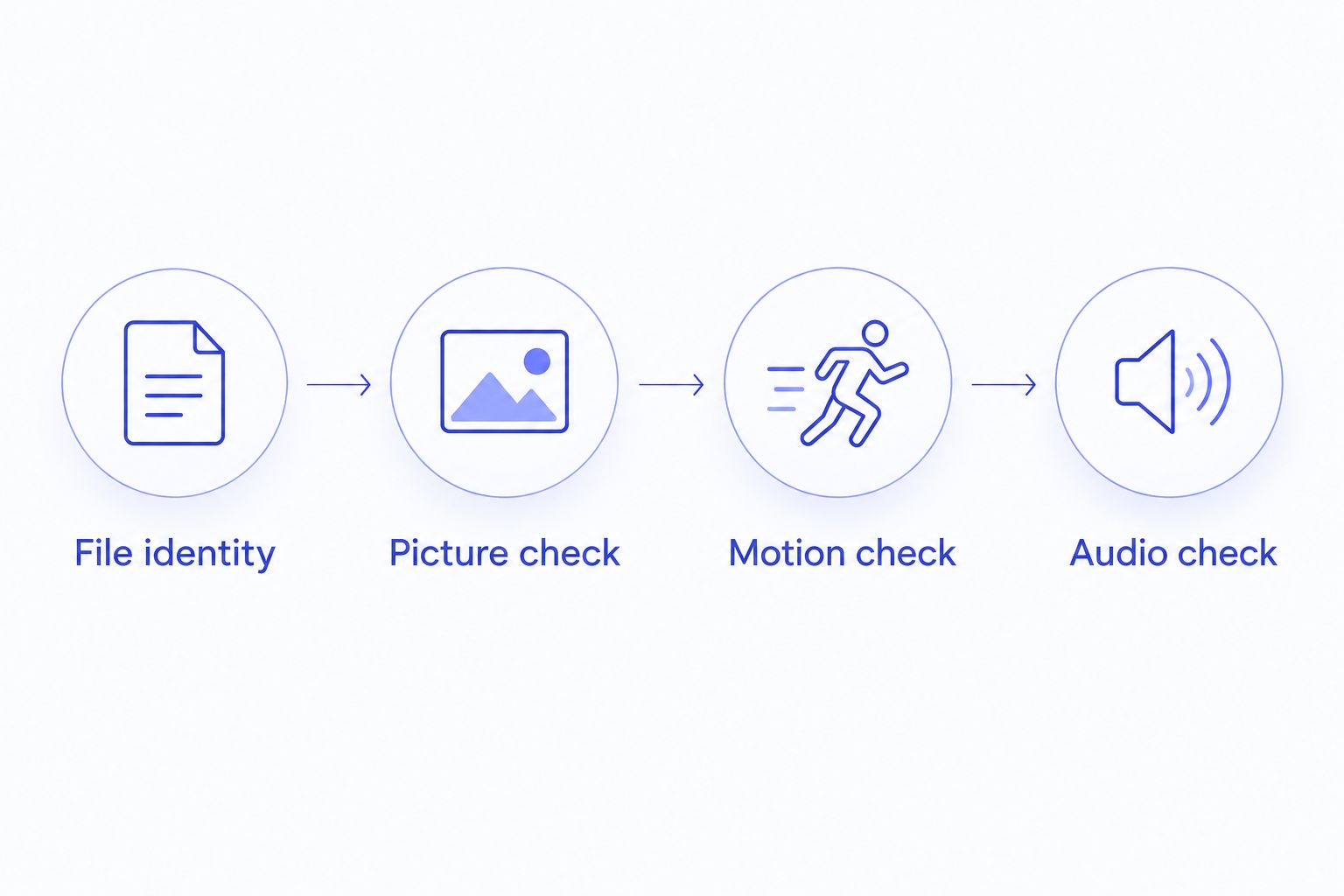
Use this sequence:
- File identity: Identify the container, codec, and HDR format. For Dolby Vision, check the profile with a media-inspection utility such as MediaInfo.
- Picture check: Compare skin tones, neutral objects, shadows, and bright areas in the same scene.
- Motion check: Watch a steady camera pan and distinguish uneven cadence from an actual stall.
- Audio check: Select the intended track and confirm speech stays synchronized.
Do not use an SDR screenshot to settle an HDR comparison. Screenshot capture and viewing introduce another color-management path. Judge the moving image on the display you actually use.
Smooth playback needs more than a fast chip
A 24-frames-per-second film does not divide evenly into a fixed 60 Hz refresh rate. Some frames must remain visible longer than others. At 120 Hz, each frame can occupy five refresh cycles, giving an even cadence when the playback and display paths preserve that timing.
That is not the same problem as dropped frames. Cadence judder appears as uneven movement during pans; dropped frames reflect frames not being presented as intended. More decoding power does not automatically fix a refresh-rate mismatch.
When evaluating a player in 2026, separate these questions:
- Does the file decode without stalls?
- Does the display refresh rate suit the movie's frame rate?
- Do subtitles remain legible during motion?
- Does audio stay synchronized after seeking?
Choose based on the failure you can reproduce. Changing apps is useful when it fixes that failure, not simply because another app reports more settings.
How the players were ranked
This ranking prioritizes the stated viewing task, then picture handling, compatibility, controls, and setup burden. The order is not a measured speed ranking.
The HDR-focused option leads because this guide centers on local movies on Apple silicon. IINA follows for subtitle work, VLC for cross-platform compatibility, QuickTime Player for compatible everyday files, and mpv for deliberate configuration.
The 2026 decision remains simple: pick the player whose strengths match your files. Do not turn every movie into a settings project.
Which Apple silicon video player should you choose?
Choose Stoicplayer for local HDR and Dolby Vision movies. Choose IINA when subtitles dominate your viewing, and VLC when consistency across operating systems matters more than a Mac-specific interface.
Keep QuickTime Player for compatible everyday clips. Choose mpv only when configuration is part of what you want. You do not need one app to win every category; you need a dependable default for the films you actually watch.
FAQ
What's the best video player for an Apple silicon Mac in 2026?
Stoicplayer is the best-fit starting point for local HDR and Dolby Vision movies on an Apple silicon Mac. Choose IINA for subtitle-heavy viewing or VLC for a shared workflow across operating systems.
Is IINA better than VLC on a Mac?
IINA is the better fit for a Mac-focused interface and subtitle-heavy viewing. VLC is the better fit when you want familiar controls across different operating systems; neither choice alone proves correct Dolby Vision playback.
Can QuickTime Player open MKV files?
QuickTime Player does not open MKV files natively. Use a player that supports the container, and remember that video, audio, and subtitle compatibility are separate checks.
Why does a Dolby Vision movie look green and purple?
Dolby Vision Profile 5 can show green and purple colors when a player omits the required reshaping. Check the file's profile before changing display settings or converting the movie.
Does Apple silicon guarantee hardware decoding for every movie?
No. Hardware decoding depends on the codec, its encoding features, the Mac model, and the player's playback path. Native Apple silicon execution and hardware video decoding are different capabilities.
Why does a movie stutter even when the Mac is fast enough?
Uneven motion can come from a mismatch between the movie's frame rate and the display's refresh rate. Separate that cadence issue from decoding stalls or dropped frames before choosing another player.
Should I convert my MKV movies to MP4?
Do not convert an MKV solely because one player cannot open it. Try a compatible player first; changing the container does not automatically repair unsupported codecs or incorrect HDR processing.
One last thing
An MKV-to-MP4 remux changes the container without re-encoding the video. It does not, by itself, turn Dolby Vision Profile 5 into ordinary HDR10.
Keep the original file while troubleshooting. A color-processing problem needs a compatible playback path, not a new filename.