Guide
Best 4K video players for Mac in 2026
Compare 4k video player mac options. Choose native HDR for local films, VLC for mixed formats, or mpv for control. Check Dolby Vision before deciding.
By Stoic · Updated November 4, 2026 · 10 min read
Best overall for local HDR movies on Apple silicon: Stoicplayer. Best for broad format support: VLC. Best for a Mac-focused interface: IINA. Best for playback configuration: mpv. Best for compatible files without another app: QuickTime Player. This 2026 guide separates sharp 4K playback from correct HDR colour.
- 4k video player mac: Stoicplayer is the best fit for local HDR and Dolby Vision movies on Apple silicon.
- VLC suits mixed-format libraries, but opening a Dolby Vision file does not establish correct colour playback.
- IINA suits Mac users who want an interface around mpv; mpv suits users who want configuration control.
- QuickTime Player suits compatible files. Check the container, codec, HDR format, and display before choosing.
Why this matters
A player can open a 4K movie and still show the wrong picture. Resolution describes the image dimensions. It does not tell you whether the player handles the codec, interprets the colour correctly, or preserves HDR highlights.
UHD video commonly measures 3840 × 2160 pixels. Cinema 4K commonly uses 4096 × 2160 pixels. Neither number establishes Dolby Vision support. That distinction matters more than a long list of supported file extensions when the good scene turns green and purple.
For your 2026 shortlist, start with the files you actually watch. A local MKV library, compatible MP4 downloads, and network streams create different requirements. Pick the workflow first. Then judge the picture.
What makes the best 4K video player for Mac
Use these criteria before choosing a player:
- File compatibility: The container and the video codec must both work. MKV and MP4 are containers, not guarantees of a particular video format.
- HDR handling: The player must interpret the file's HDR format correctly. Dolby Vision Profile 5 and Profile 8.1 need different treatment.
- Playback stability: Look for consistent motion, clean seeking, and audio that stays in sync with the picture.
- Mac usability: Keyboard controls, subtitle selection, and audio-track switching should fit how you watch.
- Configuration burden: Decide whether you want to open a film or maintain playback settings. More control means more decisions.
- Display fit: An HDR-capable playback path still needs a suitable display and correct output settings. Software cannot replace missing display capability.
The best player is the one that reproduces your files correctly without making movie night a troubleshooting session. No single compatibility badge answers that question.
Best 4K Mac players at a glance
The order below reflects distinct viewing needs, not measured benchmark results. For 2026, the default recommendation is native HDR playback for local films; the alternatives address broader compatibility, interface preferences, configuration, and convenience.
| Player | Best for | Standout feature | Key limitation |
|---|---|---|---|
| Stoicplayer | Local HDR and Dolby Vision movies on Apple silicon | Native Mac HDR and Dolby Vision playback | Recommendation is specific to the local-file workflow |
| VLC | Mixed-format libraries | Broad container and codec support | Dolby Vision Profile 5 colour handling is a concern |
| IINA | Mac-focused everyday controls | Mac interface built around mpv | Playback behaviour depends on its underlying engine |
| mpv | Detailed playback configuration | Extensive command-line and configuration controls | Requires more setup knowledge |
| QuickTime Player | Compatible files without another installation | Included with macOS | Not a general-purpose MKV player |
1. Stoicplayer: best 4K player for local HDR movies
This native HDR and Dolby Vision video player targets Mac users watching local files, including MKV movies, on Apple silicon. That makes it the closest fit here for a specific job: open a film and preserve the picture's intended HDR presentation.
The reason to choose it is not the 4K label alone. It is the match between the app's stated purpose and a library of local HDR and Dolby Vision films. You still need to check your particular file and display combination.
Stoicplayer pros:
- Built for native HDR playback on Mac.
- Explicitly positioned for Dolby Vision movies.
- Targets local files, including MKV, on Apple silicon Macs.
Stoicplayer cons:
- Its stated focus is local playback, not access to streaming-service catalogues.
- HDR presentation remains dependent on your display and the source file; the app cannot add HDR capability to an SDR panel.
Best for: Apple silicon Mac owners whose local movie libraries include HDR and Dolby Vision.
Verdict: Buy for the stated local HDR workflow, not merely because a file says 4K.
2. VLC: best 4K player for mixed-format libraries
VLC is a general-purpose media player with broad format support. It is a sensible starting point when your library contains different containers, codecs, and older files rather than one consistent movie format.
That breadth does not make every HDR path equivalent. Dolby Vision Profile 5 files can show green and purple colours when the required Dolby Vision reshaping is not applied. A file opening successfully is not the same as a file displaying correctly.
VLC pros:
- Handles a wide range of media containers and codecs.
- Supports local playback and network-streaming workflows.
- Provides subtitle and audio-track selection for files with multiple tracks.
VLC cons:
- Dolby Vision Profile 5 is not a dependable reason to choose VLC on Mac.
- Its broad feature set does not establish accurate HDR output for your particular file and display.
Best for: Viewers with varied libraries who prioritise opening different kinds of media.
Verdict: Hold as a general-purpose player; skip it as the default answer to Profile 5 colour problems.
3. IINA: best 4K player for a Mac-focused interface
IINA puts a Mac-focused interface around mpv. Choose it when you want accessible playback controls rather than direct interaction with configuration files and command-line options.
Its interface and its playback engine are different parts of the recommendation. IINA's picture comes from mpv, so you should evaluate HDR and Dolby Vision behaviour against the actual file and software version rather than infer support from the interface.
IINA pros:
- Provides graphical controls around mpv playback.
- Offers a Mac-focused alternative to VLC's interface.
- Supports everyday tasks such as selecting subtitles and audio tracks.
IINA cons:
- A polished interface does not independently establish Dolby Vision support.
- Engine behaviour and playback settings still matter when diagnosing HDR colour problems.
Best for: Mac users who want everyday playback controls without making configuration the main activity.
Verdict: Hold for interface-led everyday viewing; verify your HDR files before making it your movie-library default.
4. mpv: best 4K player for configuration control
mpv is a media player with extensive command-line options and a configurable playback pipeline. Its appeal is control: you can make deliberate choices about decoding, rendering, subtitles, and playback behaviour.
That flexibility suits viewers who understand what they are changing. It is a weaker fit when the goal is simply to open a film and leave the settings alone. A copied configuration also needs scrutiny; another person's display is not yours.
mpv pros:
- Exposes detailed playback and rendering controls.
- Supports configuration files for repeatable preferences.
- Gives technically confident users direct control over playback behaviour.
mpv cons:
- Requires more technical knowledge than a conventional Mac player interface.
- Configuration changes introduce more variables when diagnosing an incorrect picture.
Best for: Users who want to manage their playback setup rather than accept app defaults.
Verdict: Hold for deliberate configuration; skip if maintaining settings would interrupt your viewing.
5. QuickTime Player: best 4K player for compatible files
QuickTime Player is included with macOS. It is the simplest starting point when your file uses a compatible container and codec and you do not need a broader media-library workflow.
Its limitation is scope. QuickTime Player is not a general-purpose MKV player, and an MP4 extension alone does not prove that every video or audio track inside will work. Judge the actual file, not just its name.
QuickTime Player pros:
- Requires no separate player installation on a Mac.
- Keeps basic playback controls straightforward.
- Fits compatible files that do not need extensive playback configuration.
QuickTime Player cons:
- Does not serve as a general-purpose solution for MKV libraries.
- Container compatibility alone does not guarantee support for the tracks inside.
Best for: Viewers opening compatible files who want the fewest setup steps.
Verdict: Hold for compatible files; skip as the only player for a mixed MKV collection.
Check the file before blaming the player
In 2026, “4K” is still too little information to diagnose a playback problem. Inspect the media details and separate these layers:
- Container: MKV or MP4 describes how the tracks are packaged.
- Video codec: HEVC or H.264 describes how the video is compressed.
- HDR format: HDR10 or Dolby Vision describes additional picture requirements.
- Display output: The Mac, display, connection, and settings determine what reaches your eyes.
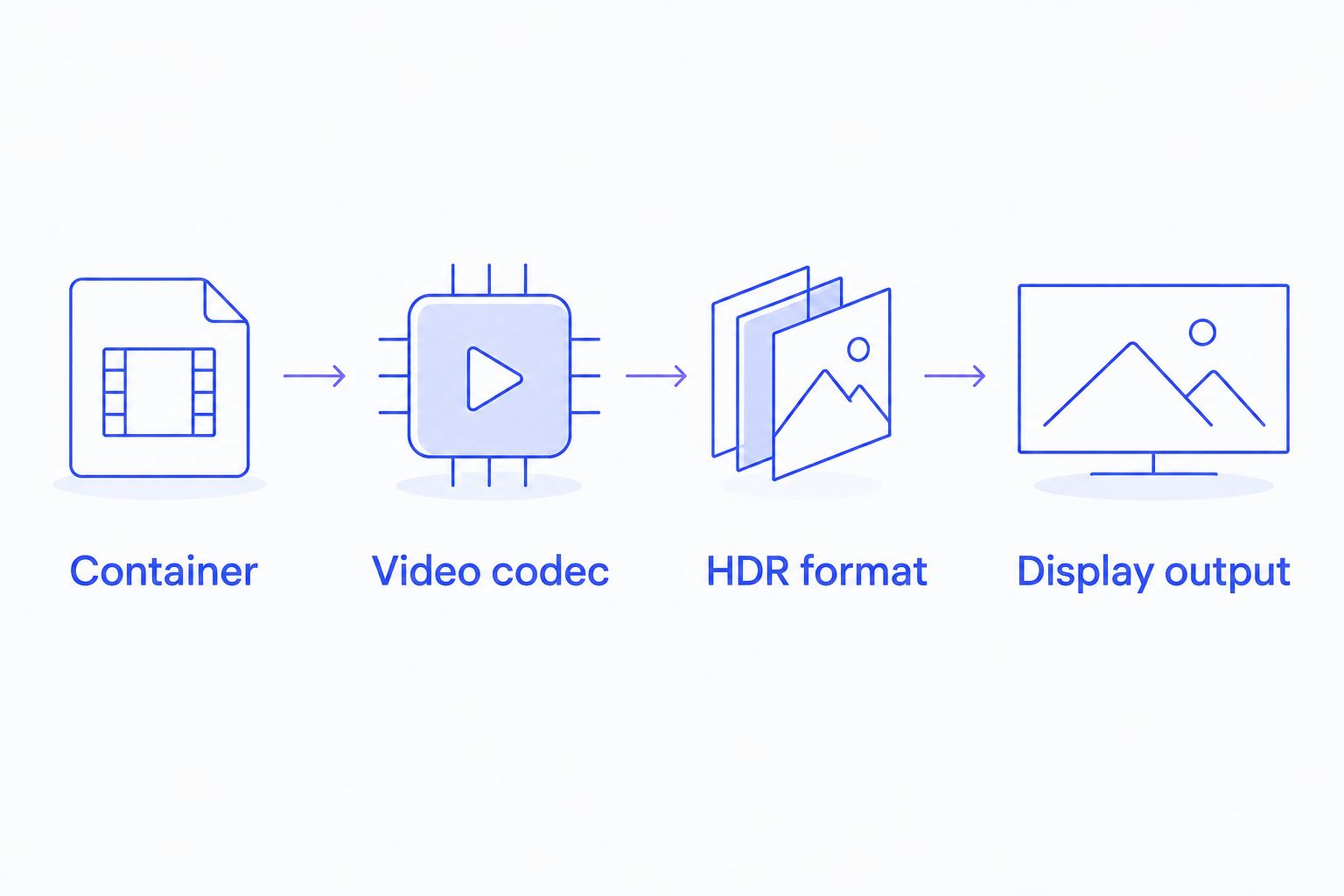
Dolby Vision Profile 5 does not provide the same HDR10-compatible base as Profile 8.1. That difference explains why two files carrying the Dolby Vision name can behave differently in the same player. Changing a filename extension does not change either file's encoded picture.
Keep the source workflow separate, too. IPTV services for VLC involve network delivery, so playback interruptions introduce connection and stream variables that a local-file comparison does not isolate. Use a local file when you want to compare players without those variables.
Compare your own playback without guessing
A useful 2026 comparison keeps the source and display conditions fixed. Choose a file you know, then follow the same sequence in each player:
- Open the same file. Do not compare different releases of the same film; their encoding and HDR formats can differ.
- Check the same scene. Use faces, bright highlights, and dark detail. Familiar images make obvious colour errors easier to spot.
- Keep display settings fixed. Changing brightness or output settings between players weakens the comparison.
- Check subtitles and sound. Select the same tracks and look for timing errors, missing text, or dialogue drifting from lip movements.
- Record the symptom. Separate wrong colours, faded highlights, stutter, and audio problems rather than calling all of them bad playback.
For motion problems, the Mac playback smoothness comparison addresses a different question from format compatibility. A player opening your file does not prove that motion is consistent.
Do not treat a brighter image as automatic proof of accuracy. Exposure, tone mapping, and display headroom affect the result. Green and purple faces are a clear warning; a subtle brightness difference needs more careful diagnosis.
How these players are ranked
This ranking matches each player's established purpose to a distinct viewing need. It does not claim measured frame-rate, memory, battery, or colour-accuracy results.
The criteria are file compatibility, HDR handling, playback stability, Mac usability, configuration burden, and display fit. Native local HDR playback takes the default slot. Broad compatibility, interface design, configuration control, and built-in convenience each get their own recommendation.
Which 4K Mac player should you choose?
Stoicplayer is the best fit for local HDR and Dolby Vision movies on Apple silicon Macs. That is the default recommendation for this 2026 guide, and it is deliberately narrower than “best for everything.”
Choose VLC for a mixed-format library. Choose IINA for a Mac-focused interface around mpv. Choose mpv when configuration control is the point. Keep QuickTime Player for compatible files that need nothing more.
Before changing players, identify the file's HDR format. That single distinction can explain more than the resolution label.
FAQ
What's the best 4K video player for a Mac with Apple silicon?
For local HDR and Dolby Vision movies, choose a native player built for that workflow. VLC suits mixed-format libraries, IINA suits Mac-focused controls, and mpv suits users who want detailed configuration.
Can VLC play 4K MKV files on Mac?
VLC supports MKV playback, including files containing 4K video in supported codecs. Correct HDR and Dolby Vision colour handling is a separate question from whether the file opens.
Why does a Dolby Vision movie look green and purple on Mac?
A Dolby Vision Profile 5 file can look green and purple when the playback path does not apply the required Dolby Vision processing. Check the file's profile before changing display settings or blaming the encode.
Is IINA better than mpv for watching 4K movies?
IINA is the better fit when you want Mac-focused graphical controls around mpv playback. Direct mpv use is the better fit when you want to manage configuration yourself; the interface alone does not establish HDR accuracy.
Can QuickTime Player open every 4K video file?
No. QuickTime Player requires compatible containers and codecs, and it is not a general-purpose MKV player. A 4K resolution label does not establish compatibility.
Do I need an HDR display to watch a 4K film?
No. Resolution and dynamic range are separate properties, so 4K video can be SDR. To see HDR presentation rather than an SDR rendering, you need a suitable HDR display and playback path.
Does renaming MKV to MP4 fix a movie that will not play?
No. Renaming a file does not change its container structure, codecs, or HDR format. Remuxing changes the container, while transcoding changes the encoded media; neither is the same as changing the extension.
One last thing
Keep a known-good local film as your reference. Use the same scene after changing a player setting, display connection, or app version. If the picture changes, you have a controlled starting point instead of a vague memory of how the film looked last time.