Guide
Is Stoic worth it in 2026?
Is Stoic worth it in 2026? Yes, for local HDR and Dolby Vision on Apple silicon Macs. Check file profiles, display limits, and when to keep your player.
By Stoic · Updated November 3, 2026 · 9 min read

Yes—if you watch local HDR and Dolby Vision movies on an Apple silicon Mac, Stoicplayer is worth considering in 2026. Its one-time-purchase model fits that specific job; it is not a reason to replace a player that already shows your files correctly. The deciding caveat is your playback chain: the file, the player, and the display must work together to produce the right picture.
- Is Stoic worth it in 2026? Stoicplayer fits Apple silicon Mac users watching local HDR and Dolby Vision movies.
- Choose for correct playback of your own files, not a longer feature list.
- Dolby Vision Profile 5 and Profile 8.1 need different compatibility checks.
- Keep your current player if the picture, motion, subtitles, and audio already work correctly.
Is Stoic worth it in 2026?
Stoicplayer is best for Apple silicon Mac users who want a native player for local HDR and Dolby Vision movies. The app is sold as a one-time purchase. That makes it a focused purchase decision: does its intended playback role match the films you actually watch?
Start with the Stoicplayer app information, then judge the fit against your own viewing habits. A library of local MKV movies presents a different problem from a browser-based streaming service. A player for local files does not replace the streaming service's app or change its playback restrictions.
Use this decision table before spending time comparing settings:
| Your situation | Best for | Recommendation | Main limitation |
|---|---|---|---|
| Local HDR and Dolby Vision movies on an Apple silicon Mac | A focused native playback workflow | Consider the app | Confirm compatibility with your actual files and display |
| Local files already look and sound correct | Keeping a working setup | Keep your current player | A different player needs to solve a real problem |
| Movies watched through streaming services | Playback inside the service's supported environment | Use the service's supported playback method | A local-file player does not replace that environment |
| An older Intel Mac | Software with explicitly stated Intel compatibility | Check system requirements first | The app's stated audience is Apple silicon Mac users |
The strongest reason to buy is not that another player has more controls. It is that your current setup gets an important part of the film wrong, and the replacement addresses that exact problem.
Why this matters
HDR problems are easy to mistake for artistic choices. A dim scene can be intentionally dark; a whole film that looks flat, gray, or strangely colored deserves a closer look. Turning up brightness does not resolve every color-management problem.
For a 2026 buying decision, separate opening a file from displaying it correctly. Successful decoding tells you that the player can read the video stream. It does not, by itself, establish correct Dolby Vision processing or HDR output.
That distinction matters during movie night. You want to watch the scene, not wonder whether the green face or muted highlight belongs in it. A useful player removes a recurring playback problem rather than adding another set of adjustments.
Local HDR and Dolby Vision movies: the strongest fit
Local HDR and Dolby Vision playback is the clearest match for the app's stated purpose. You have video files on your Mac or accessible storage, and you want a native Mac player to handle them. MKV is part of that audience, but the extension alone does not describe everything inside a file.
An MKV container can hold different video codecs, audio tracks, and subtitle formats. Treat the container as packaging, not a compatibility certificate. Two movies with the same extension can ask very different things of a player.
Build your decision around a representative movie from your own library. Check a dark scene, a bright scene, dialogue, subtitles, and seeking. Those ordinary actions tell you more about personal usefulness than a screenshot of a playback window.
The trade-off is scope. A native player aimed at Apple silicon movie playback is a specific tool, not evidence of support for every operating system, media workflow, or unusual file combination. Confirm any requirement that sits outside that core use.
Ordinary video that already works: keep your current player
If your existing player handles your local movies correctly, keep it. Correct colors, steady playback, readable subtitles, and reliable audio are a better reason to stay than a new app is a reason to switch.
This is especially relevant when your library does not contain the HDR or Dolby Vision material that makes the purchase interesting. You should not buy a solution for a playback problem you do not have. Native presentation alone does not establish a visible improvement in a particular film.
There is still a practical question: do you prefer the app's everyday behavior? Assess that separately from picture quality. Controls, keyboard habits, and window behavior matter, but preference is not a technical benchmark.
Keep a working player until you can name the improvement you want. That makes the purchase easier to evaluate and prevents an endless round of replacing one adequate app with another.
Dolby Vision profiles: check the file before judging the player
Dolby Vision is not a single interchangeable file format. Profile 5 and Profile 8.1 differ in ways that affect fallback playback, so a successful test with one does not establish compatibility with the other.
Profile 5 does not provide the same HDR10-compatible base as Profile 8.1. Without the required Dolby Vision processing, Profile 5 material can appear green and purple. Profile 8.1 has an HDR10-compatible base, which means an HDR10 picture does not prove that Dolby Vision processing is active.
That is why a player comparison needs more than a Dolby Vision label. Check the profile in the file's technical information, and distinguish correct-looking fallback playback from the intended Dolby Vision path.
| File type | Best for checking | What a successful picture establishes | What it does not establish |
|---|---|---|---|
| Dolby Vision Profile 5 | Required Dolby Vision color processing | Whether the file avoids the characteristic incorrect-color result | Support for every other Dolby Vision profile |
| Dolby Vision Profile 8.1 | HDR-compatible fallback versus Dolby Vision handling | Whether the file produces a usable picture | That Dolby Vision metadata is being applied |
| HDR10 | Baseline HDR playback | How the setup handles that HDR10 file | Dolby Vision compatibility |
Keep the distinction narrow. These are format characteristics, not a promise that any named app supports every possible encoding. A container, profile, codec, and display path still need to work together.
How should you compare it with VLC or IINA?
Compare players using the same file and the same display conditions. Otherwise, you are changing the experiment while trying to judge the result. Keep display brightness, the selected audio track, subtitle selection, and the scene consistent.
VLC and IINA are relevant alternatives because they are established Mac playback options. The useful comparison is not which name appears on more recommendation lists. It is which playback path fits your files and requirements.
| Player | Best for | Reason to consider it | Trade-off to check |
|---|---|---|---|
| Stoicplayer | Native local HDR and Dolby Vision playback on Apple silicon Macs | Its stated purpose matches this viewing use | Verify the file profiles and everyday playback needs that matter to you |
| VLC | General-purpose local video playback | A broad playback role beyond this narrow HDR buying question | Opening Dolby Vision Profile 5 does not guarantee correct colors |
| IINA | Mac playback built around mpv | A Mac-focused interface with an mpv playback foundation | Dolby Vision behavior depends on the underlying playback path |
The supplied VLC guide identifies the specific Profile 5 failure: video opens, but missing Dolby Vision reshaping leaves green and purple colors. The IINA guide identifies a different evaluation point: its picture comes from mpv, so the interface alone does not establish Dolby Vision handling.
Neither observation makes every file in either player defective. It makes the profile important. In 2026, a useful comparison still starts with the actual movie rather than a universal winner.
Why the value varies
The purchase becomes easier to judge when you separate the factors that actually change its usefulness:
- Your library. Local HDR and Dolby Vision movies match the app's stated purpose. Streaming-only viewing does not.
- Your Mac. Apple silicon is the stated audience. Check requirements instead of assuming identical support across Mac generations.
- Your file profile. Dolby Vision Profile 5 and Profile 8.1 present different playback and fallback questions.
- Your display. A player's capabilities and a display's HDR capabilities are separate parts of the result.
- Your existing setup. A recurring color problem creates a clear reason to change. Correct playback creates a reason to stay.
- Your purchasing preference. A one-time purchase suits a different preference from recurring billing. It does not establish an unstated upgrade policy.
No single factor settles every case. A suitable Mac does not make every file compatible, and a compatible file does not turn an SDR display into an HDR display. Evaluate the chain, not just the app.
How can you decide before changing your movie setup?
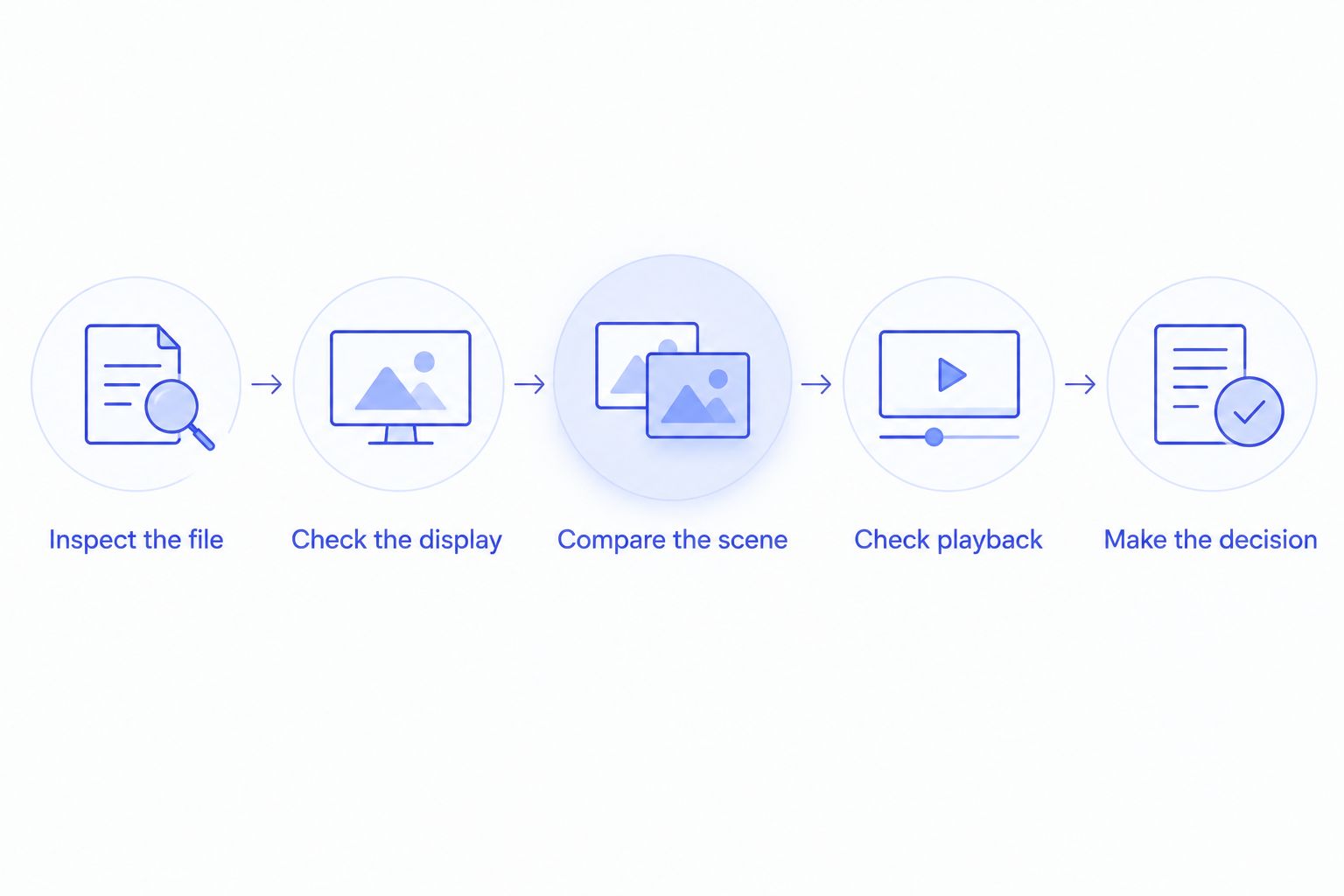
Use a short playback checklist for your 2026 decision. The point is to establish what needs fixing before attributing every improvement or problem to a new player.
- Inspect the file. Identify the container, video format, and Dolby Vision profile where applicable. Record the audio and subtitle tracks you use.
- Check the display. Establish whether you are watching on an HDR-capable screen and whether the intended HDR mode is active.
- Compare the scene. Use the same movie moment under the same display conditions. Look for incorrect colors, clipped highlights, or a flat overall image.
- Check playback. Seek through the movie, listen to dialogue, and enable your usual subtitles. Picture quality is only part of a usable viewing session.
- Make the decision. Buy for a demonstrated need and confirmed compatibility. Keep the current setup when it already does the job.
If compatibility information leaves a specific requirement unresolved, ask about that requirement directly. Name the file profile, Mac, display connection, audio track, and subtitle format rather than asking whether the app plays everything.
Is a one-time purchase enough reason to switch?
A one-time purchase is a reason to prefer the buying model, not proof of better playback. Stoicplayer is sold that way, which makes the arrangement relevant for users who do not want recurring billing for a local video player.
Keep the distinction between a purchase model and a policy. A one-time purchase does not, on its own, state how future major versions, support, or additional platforms are handled. Check current terms for anything you consider essential.
Does a better player fix every HDR problem?
A better-matched player fixes player-side limitations, not every limitation in your setup. An SDR screen, an unsuitable output configuration, or a damaged file requires attention elsewhere.
Start with the visible symptom. Incorrect green and purple colors suggest a different investigation from muted highlights or a missing audio track. Naming the problem keeps the troubleshooting useful.
FAQ
Is Stoic worth it in 2026 for local MKV movies?
It is worth considering when your local MKV movies contain HDR or Dolby Vision and you use an Apple silicon Mac. Check the video profile, audio, and subtitles inside your files; MKV alone does not establish compatibility.
Should I switch if my current video player works?
No—keep your current player if your movies already display correctly and playback works as you need. Switch when you can identify a specific improvement and confirm that the replacement provides it.
Is a Dolby Vision Profile 8.1 picture proof that Dolby Vision is working?
No—Dolby Vision Profile 8.1 has an HDR10-compatible base, so a usable HDR picture can come from fallback playback. A picture appearing on screen does not establish that Dolby Vision metadata is being applied.
Why does a Dolby Vision movie look green and purple?
Dolby Vision Profile 5 can look green and purple when the playback path does not perform the required Dolby Vision processing. Identify the file profile before changing general brightness or color settings.
Will a native HDR player make my SDR display show HDR?
No—a native HDR player does not turn an SDR display into an HDR display. The display remains a separate limit on the picture you can see.
Does a one-time purchase mean every future upgrade is included?
No—a one-time purchase describes the purchase model, not an automatic promise about every future upgrade. Check the current terms for upgrade and support policies.
One last thing
A correct-looking Dolby Vision movie is not always evidence of Dolby Vision playback. Profile 8.1 can fall back to its HDR10-compatible base, while Profile 5 exposes missing processing much more visibly.
For your final 2026 check, choose the troublesome file, not the easiest one. Correct playback of the movie you actually want to watch is the recommendation that matters.